
Mac vs Windows availability mismatch
Teams that mix macOS and Windows devices often run into inconsistent behavior. They try to use the mac outlook scheduling assistant. The tool works differently depending on whether someone opens Outlook for Mac. They switch to Outlook on the web. Or they connect through an Office 365 tenant. These differences show up in the buttons that appear. They also show up in the availability suggestions offered. They show up in the way meeting invites update after replies arrive. For instance, a marketing team spread across two continents discovered that their Mac users saw only basic free/busy bars. Windows colleagues received full suggested-time grids. This led to several rescheduled calls before they standardized their process.
Users need a clear picture of what the mac outlook scheduling assistant can actually do on each platform. They can plan meetings without surprises. This guide walks through the exact controls available in each client. It covers the meeting types it handles well. It covers the configuration limits that can block features. It also covers reliable fallback steps when the assistant is missing or limited. In practice, many organizations now run quarterly training sessions. These sessions walk new hires through side-by-side comparisons of the Mac and web versions. Everyone starts with the same expectations.
By the end, Mac users and the admins who support them will know where to look for scheduling tools. They will know when to involve IT for tenant-level fixes. One helpful habit is to keep a short internal wiki page. It lists the current quirks observed on the latest macOS and Outlook versions. The page is updated whenever Microsoft pushes a new build.
The mac outlook scheduling assistant helps users see free and busy times across calendars. Its reach changes with the client in use. Because calendar data flows from the same Exchange or Microsoft 365 backend, the underlying information is identical. Yet the way each client requests, caches, and displays that data creates noticeable gaps. These gaps affect daily workflow.
Where scheduling assistant appears
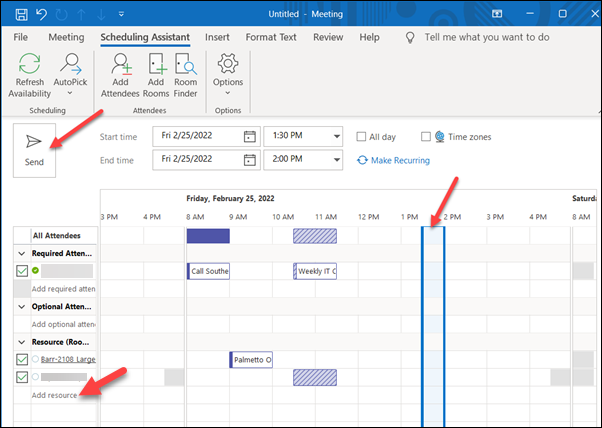
Where the mac outlook scheduling assistant appears in macOS Outlook vs Outlook on the web
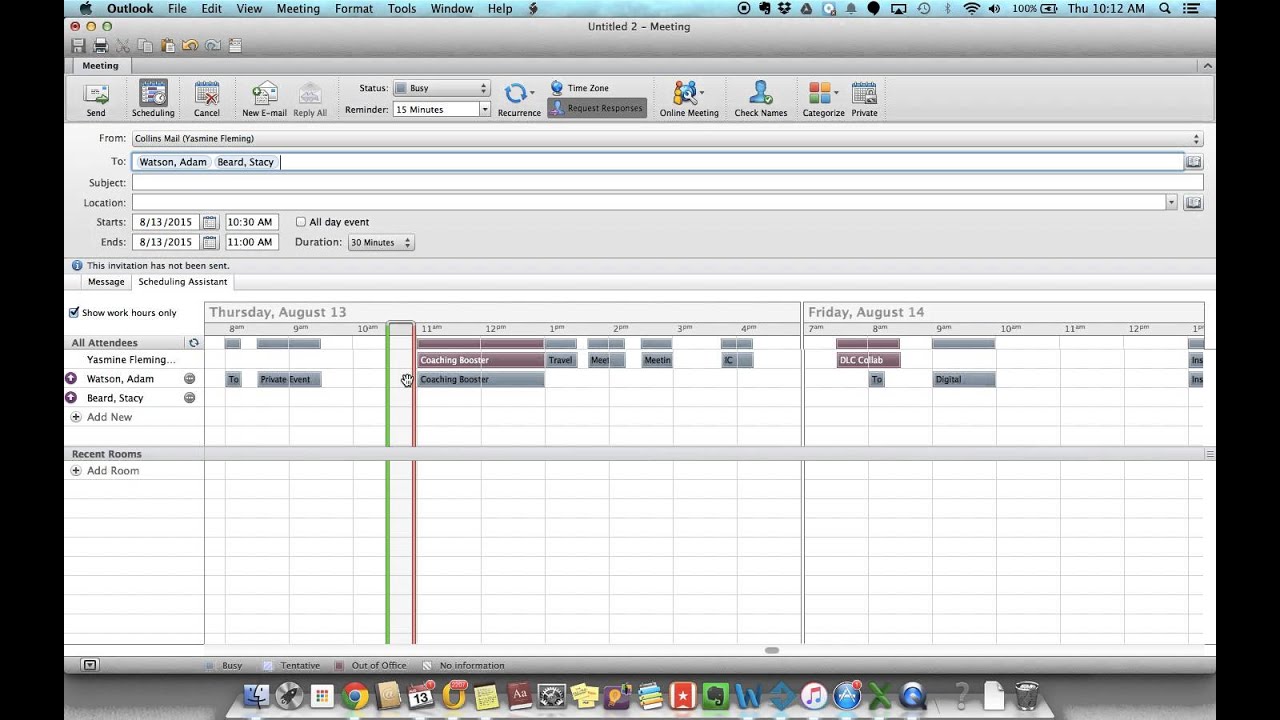
When you compose a new meeting in Outlook for Mac, the scheduling assistant sits inside the meeting window itself. Look for the Scheduling Assistant tab that appears after you add attendees. The pane shows a grid of availability once the client pulls calendar data from the Exchange or Microsoft 365 server. In busy offices it is common to see the grid remain blank for ten to fifteen seconds. The Mac client finishes its background sync. This happens especially on slower Wi-Fi connections.
Outlook on the web places the same tool under the Scheduling Assistant button. That button opens a separate panel on the right side of the compose window. The web version updates live as you add or remove people. The Mac client sometimes requires a manual refresh. Both versions let you drag time blocks. Yet the Mac client hides the button until at least one attendee is listed. A practical tip is to add a placeholder attendee first. You can later remove them. This simply unlocks the tab without delay.
Users who reply to an existing invite on Mac will not see the assistant at all in the reading pane. They must open the meeting in its own window. They switch to the Scheduling Assistant view. On the web, the assistant remains visible even when viewing the invite inside the inbox preview. These placement differences explain why some team members report missing the tool entirely. A quick workaround many users adopt is to right-click the invite. They choose “Edit Meeting” so the full window opens immediately.
Meeting assistant features for different meeting types
The mac outlook scheduling assistant handles single meetings without issue in most accounts. It displays free, busy, and tentative blocks for every attendee pulled from the calendar store. Recurring meetings add another layer. The Mac client only shows availability for the first occurrence unless you expand the series manually. When planning a six-week training series, for example, organizers often duplicate the first instance. They adjust dates one by one rather than wrestling with the collapsed view.
Room and resource booking works when the room mailbox is added as a required attendee. The assistant marks the room as busy if another meeting already claims it. Outlook on the web gives clearer visual cues for resource conflicts. The Mac version sometimes lists the room as available until you send the invite and receive a decline. In one agency the fix was to always add the room last. They add it after the human attendees. The grid had time to refresh before the final send. The follow-up piece What to check in meeting assistant outlook before sending invites covers this in more practical detail.
Shared calendars require extra permissions. If the user lacks reviewer rights on a colleague’s calendar, the mac outlook scheduling assistant shows only the colleague’s free or busy status without details. The web client surfaces the same limitation but sometimes prompts for consent to view more information. Teams that rely heavily on shared calendars now include a short permissions checklist during onboarding. This prevents these blind spots.
How availability proposals are generated and displayed
Both clients query the Microsoft 365 or Exchange server for free and busy data. The mac outlook scheduling assistant then renders a horizontal timeline that highlights suggested slots. Attendees can click a suggested block to shift the meeting time before sending the invite. The web client usually surfaces three or four suggestions at once. The Mac version often shows only the next two available windows until you scroll.
Once recipients reply, the web version updates the meeting series automatically in most cases. The Mac client requires the organizer to reopen the meeting. They refresh the scheduling grid to see the new status. Tentative replies appear as hatched blocks on both platforms. Yet only the web client lets you filter the view to show only accepted attendees. Keeping both windows open side by side is a simple habit. It lets organizers catch status changes without waiting for automatic refreshes.
External guests without Microsoft 365 accounts appear as unknown in the grid. The mac outlook scheduling assistant cannot pull their calendars. Organizers must rely on the reply text or manual notes instead of live availability data. Many teams now ask external participants to paste their availability directly into the reply. The organizer can copy those times into the next draft invite.
Common configuration constraints that affect scheduling assistant availability
Account type matters. Only Exchange Online or on-premises Exchange accounts surface the full mac outlook scheduling assistant. IMAP or POP accounts show no scheduling grid at all because they lack free and busy publishing. If you recently migrated from an older email system, double-check that your account was converted to an Exchange mailbox rather than left as a forwarding address.
Shared mailbox permissions control visibility. If the user holds only send-as rights without calendar access, the assistant returns partial results. Tenant policies in Office 365 can also disable the assistant for certain security groups. A setting that admins control through the Exchange admin center. Running a quick test meeting with a colleague in the same group usually reveals these policy blocks before they affect real customer calls.
Mailbox size and sync limits occasionally block the feature. When a user’s calendar contains thousands of recurring items, the Mac client may stop updating the grid until the mailbox is cleaned or the sync window is reduced. The web client handles larger datasets more gracefully because it queries the server on demand. Scheduling a monthly archive of old meetings keeps the Mac client responsive for most users.
Fallback workflows when the assistant is missing
When the mac outlook scheduling assistant fails to load, start by sending a manual time-proposal email. List two or three clear options in the message body. Ask recipients to reply with their preference. This method works across every client and avoids any client-specific limitation. A useful template many teams reuse includes a short table with date, start time, and end time so replies stay consistent.
Another reliable step is to create a calendar hold first. Block the tentative time on your own calendar. Then send an updated invite once everyone confirms. The mac outlook scheduling assistant cannot create these holds automatically. Yet doing it manually keeps the slot from being double-booked. Some users color-code these tentative blocks so they stand out from confirmed meetings at a glance.
Finally, ask an admin to verify mailbox permissions and tenant settings. Many missing-assistant issues trace back to a single policy change rather than a client bug. Documenting the exact behavior on Mac versus web helps the support team reproduce the problem quickly. A short screen recording saved to a shared folder often resolves tickets in under an hour.
Shared mailbox and room calendar conflicts
Mac user schedules with a Windows attendee
A consultant on a MacBook sends a project kickoff meeting to a Windows-based client. The mac outlook scheduling assistant shows the client as free during the proposed slot. Yet the Windows user later reports a conflict. The mismatch occurs because the Mac client had not refreshed the latest free and busy data from the shared mailbox. Opening the same meeting on the web instantly reveals the updated busy block. The consultant now refreshes the grid manually every time before sending invites that cross operating systems.
Shared mailbox or room calendar conflicts
A marketing team uses a shared room calendar for weekly reviews. When the organizer adds the room through the mac outlook scheduling assistant, the grid shows the room as available. After the invite is sent, the room declines because another series already occupies the space. Checking the same room through Outlook on the web surfaces the hidden recurring item that the Mac client had not pulled. The team solved the issue by adding the room through the web client first. Then they copy the final time back into the Mac draft.
External guests responding with time selections
An external vendor replies to a meeting invite with three preferred times. The organizer pastes those times into a new invite. They use the mac outlook scheduling assistant to check internal attendees. Because the vendor has no Microsoft 365 account, the grid never reflects the vendor’s availability. The organizer must manually confirm the final slot. They send an updated invite that includes everyone. Keeping a running note in the meeting body with the vendor’s original options prevents the information from getting lost during back-and-forth replies.
Keep This in Mind
Mac users can verify most mac outlook scheduling assistant behavior themselves by comparing the same meeting in Outlook for Mac and Outlook on the web. When the feature disappears entirely, check account type and permissions first. Only after those steps fail should you open a ticket with your Microsoft 365 administrator. Keeping a personal test calendar with a few recurring dummy meetings makes these quick comparisons painless and repeatable.
Pick one of the scenarios above. Test it on your own devices today. Note exactly which client shows the controls. Share that short record with your team so future rollouts avoid the same surprises. The microsoft scheduling assistant works reliably once you know where each client hides its tools. Over time these small checks become second nature and dramatically reduce last-minute rescheduling across mixed-device teams.
Related Topics
- New Outlook scheduling assistant: why it appears for some teams and not others
- Email-to-calendar scheduling assistants in Outlook: 7 practical scenarios that work
- Outlook scheduling assistant vs calendar scheduling features in Microsoft Calendar and Outlook
- How the scheduling assistant in Outlook reduces back-and-forth for meeting invites
- Scheduling assistant downloads: what to check before installing a meeting schedule assistant