
Webex Assistant Closed Captioning: Why Captions Lose the Speaker in Busy Meetings

Webex assistant closed captioning does a good job of putting words on the screen while people talk. It does a less reliable job of telling you who said them. Anyone who has scrolled back through a captioned call and found a block of text with no clear owner knows the problem. The words are there, but the context is gone, and a commitment or decision can end up tied to the wrong person. This article covers the settings and meeting habits that keep speaker context intact, from the moment you start the call to the transcript you share afterward. It’s written for organizers, admins, and accessibility leads who run captioned Webex meetings regularly.
To keep speaker context in Webex captions, confirm that captioning is available for your account and meeting type before the call starts. Set the caption language before anyone speaks, turn on speaker labeling where your version offers it, and give each person a clear turn. Most attribution errors begin with one of those steps being skipped, not with the captioning engine itself.
Nine Steps to Captioned Meetings That Keep Speaker Context
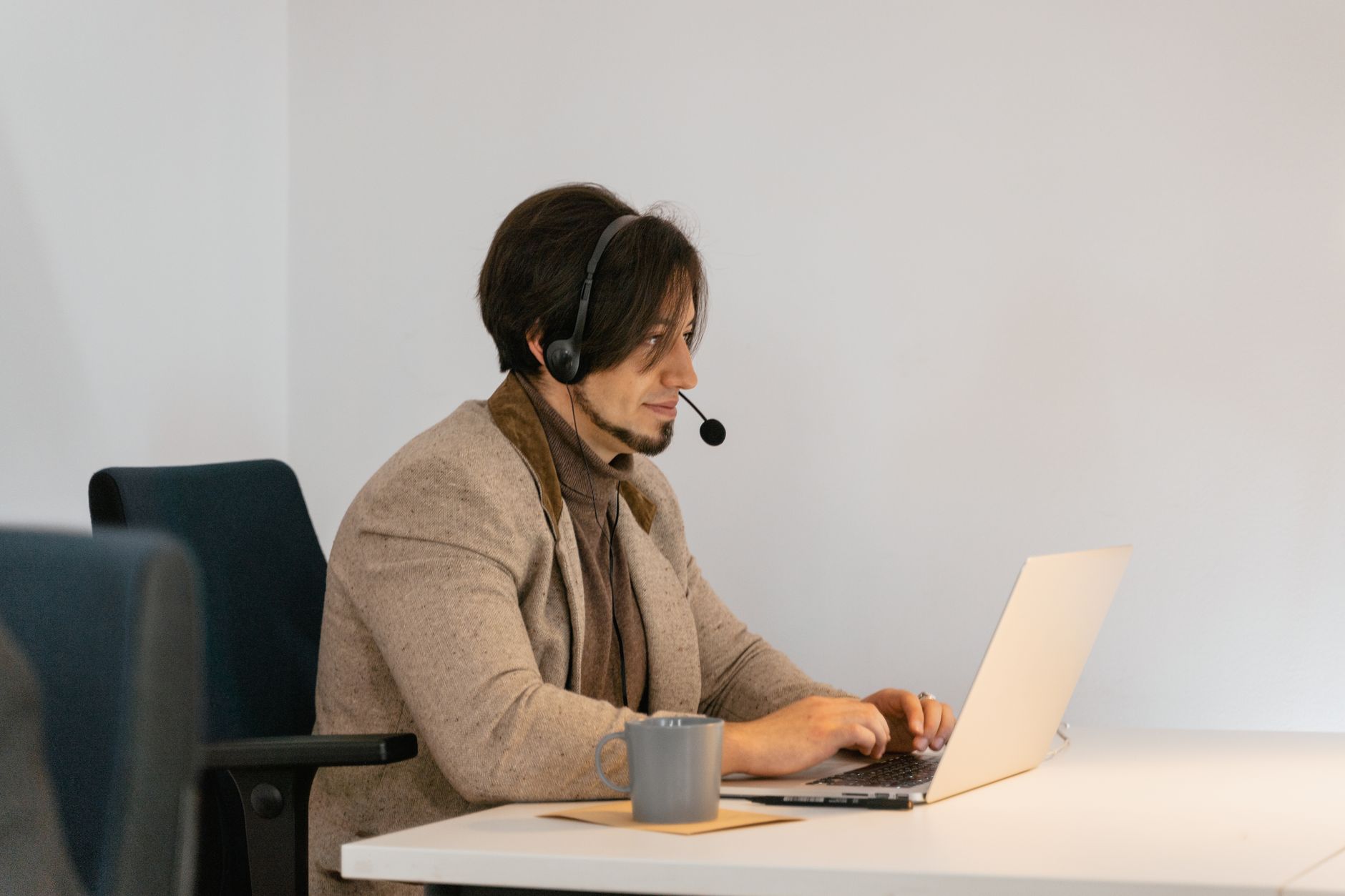
Work through these steps in order. Most of them take less than a minute, but skipping any one of them is usually where speaker context slips away.
- Check whether your account and meeting type support captioning. Webex plan levels, site settings, and meeting types can all affect which caption features appear. Do this a day early, not five minutes before the call, because an admin change can take time to apply. If a feature is missing, you’ll find out now rather than halfway through a client discussion.
- Start the meeting and open the captioning control panel. Once you’re in, find the captions control in the meeting toolbar and open the panel where you can see the caption options. Take a quick look at what’s enabled before you invite the rest of the group in. Doing this first gives you a chance to fix problems before they reach the people who matter.
- Select the caption language and confirm it before the first speaker talks. Choose the language that most of the group will speak, and make sure the setting actually took effect. Language mismatches produce garbled text that’s almost impossible to attribute later. A short check now saves you from rebuilding the transcript by hand afterward.
- Enable speaker labeling where it’s available. Speaker labels are what tie a line of text to a face or a name in the call. Turn them on before the discussion starts, not after a long exchange has already passed. Keep in mind that labeling quality depends on how clearly each participant’s audio comes through, so ask people to use a headset or a stable microphone.
- Assign roles for moderators so speaker turns stay consistent. Name one person to move the discussion along and to call on people by name. When the moderator says “Priya, go ahead,” the caption and the spoken cue line up. This small habit makes it much easier to check attribution later, especially in meetings with more than six or seven people.
- Run a 10-second test phrase with two people to validate attribution. Ask two participants to say a short sentence each, one after the other, such as “Dana here, testing one” and “Marcus here, testing two.” Then read the captions and confirm that each line carries the correct name. If the labels are wrong, fix the microphone or the participant settings now, while the room is still quiet.
- Handle interruptions by waiting for speaker turn changes instead of overlapping. When two people talk at once, the captions tend to merge their words, and the attribution becomes a guess. Ask people to pause for a beat before they respond. A moderator can say “let’s finish Ravi’s point first” to keep the turns clean, which costs a few seconds and saves a lot of cleanup.
- Review captions in the session for errors, and decide whether to pause or refresh. Glance at the captions every few minutes, especially after a change in topic or a new speaker. If the text starts drifting, a pause or a quick restart of the captions can reset things. Don’t wait until the end of a two-hour call to discover that the first hour is unreadable.
- Verify captions and transcripts in the recording or post-meeting area, then export or share if needed. After the call, open the saved transcript and check a few sections against the recording. Look for speaker names at turn changes and for any lines that merged. Export the file only after the check, and if you also use a meeting ai assistant to write summaries, confirm that the summary matches the corrected transcript.
Mistakes That Quietly Break Speaker Attribution
Most attribution problems come from habits rather than bugs. The mistakes below show up often in teams that already have webex assistant closed captioning turned on. Each one is easy to fix once you know to look for it.
- ❌ Wrong: Turning on captions after the first few minutes. The opening introductions are the easiest part to attribute, and they’re the part you lose first.
✅ Right: Start captions before the first speaker, then confirm they’re running. - ❌ Wrong: Leaving the language on auto when several languages are spoken. Mixed-language speech often gets transcribed poorly and assigned to the wrong speaker.
✅ Right: Pick the primary language and note where other languages will come up. - ❌ Wrong: Letting people talk over each other. Overlapping audio blurs the boundaries between speakers.
✅ Right: Use the moderator to hand off turns clearly. - ❌ Wrong: Assuming the live caption view matches the saved transcript. Live text is a rough draft, and corrections can change what gets saved.
✅ Right: Check the saved transcript after the call before you quote it.
Live captions and reviewed transcripts are two different jobs, and treating them as one is the root of most disputes. For a broader look at how real-time AI support fits into a live conversation, this resource walks through how suggestions and responses are handled during a call. The same logic applies to captions: what appears in the moment is for keeping up, and the saved record is for accuracy.
Questions People Ask About Captions and Speaker Names
Can Webex captions show speaker names in every meeting?
Not always. Speaker labeling depends on your Webex version, your account settings, and the meeting type. Some setups label speakers clearly, while others show text without names. Check the captioning panel at the start of the meeting, and run the short test phrase from step six to confirm what your meeting actually displays.
Do captions help with accessibility requirements?
Captions support deaf and hard-of-hearing participants and anyone who follows better with text. The W3C’s Web Content Accessibility Guidelines include a success criterion for live captions, 1.2.4, which you can read in the WCAG 2.1 specification. Accurate speaker attribution is part of making captions useful, not just present.
Why does the transcript differ from what I saw live?
Live captions are produced in real time, so the engine has little time to revise earlier text. A saved transcript can reflect later corrections and cleaner processing. That gap is normal. Review the saved version after the meeting and treat it as the record you share.
What should I do when two people talk at once?
Ask the moderator to slow the exchange and let one person finish. Overlapping speech is the most common cause of wrong attribution. If the overlap already happened, mark the affected section in the transcript and confirm the speaker from the recording before you circulate notes.
Is a separate tool needed to keep speaker context?
Not always. Built-in captions and a careful moderator cover many meetings. Some teams add an outside tool for summaries or searchable notes, but those tools still depend on the same clean audio and clear turn-taking described above.
Keeping Speaker Context Intact From Start to Finish
Good speaker attribution comes from a short setup routine, a clear moderator, and a quick review afterward. Confirm captioning and language before the call, test two voices early, and wait for turns instead of talking over them. Then check the saved transcript before anyone relies on it. webex assistant closed captioning is only as useful as the record it leaves behind.
Next, review your existing Webex assistant setup pages to see which captioning options your organization already has enabled. Then come back to this article and run through the nine-step checklist before your next important meeting.
Related Topics
- Closed captions in Webex: keep speaker names readable from start to finish
- Webex captioning workflow for organizers: settings that reduce confusion
- From live captions to recordings: a Webex meeting approach that holds context