
What Is Scheduling Assistant?
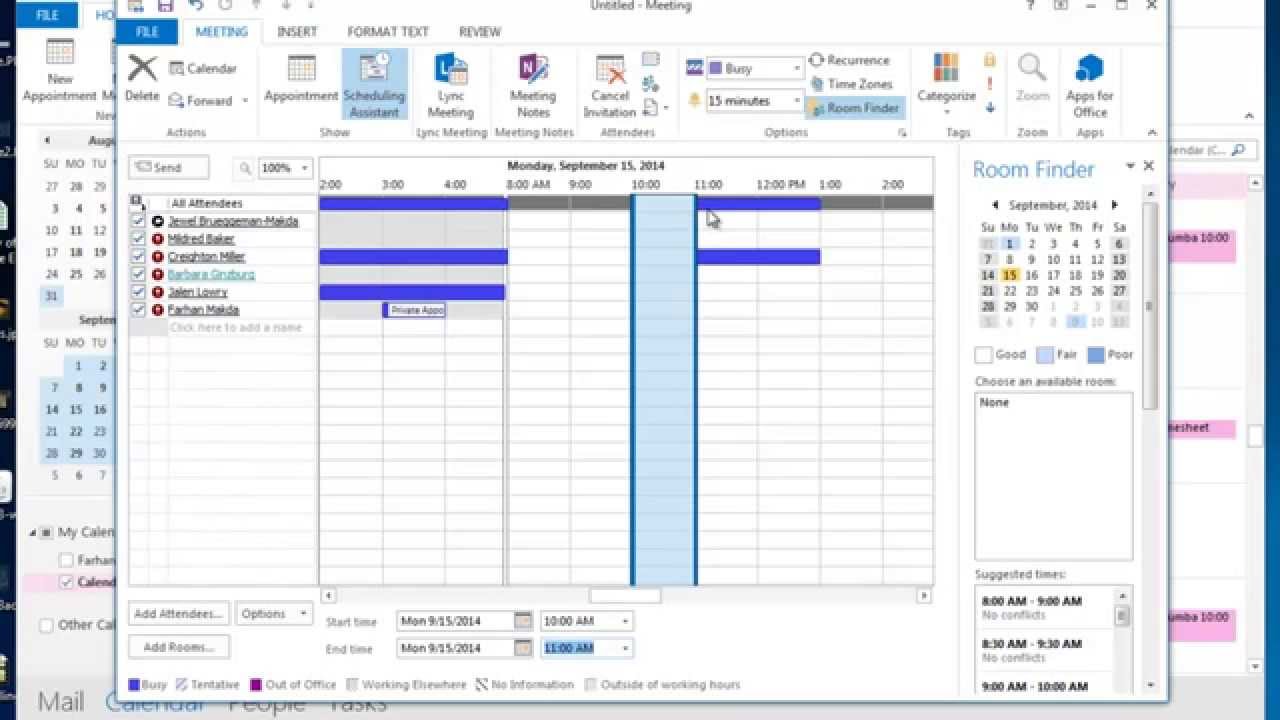
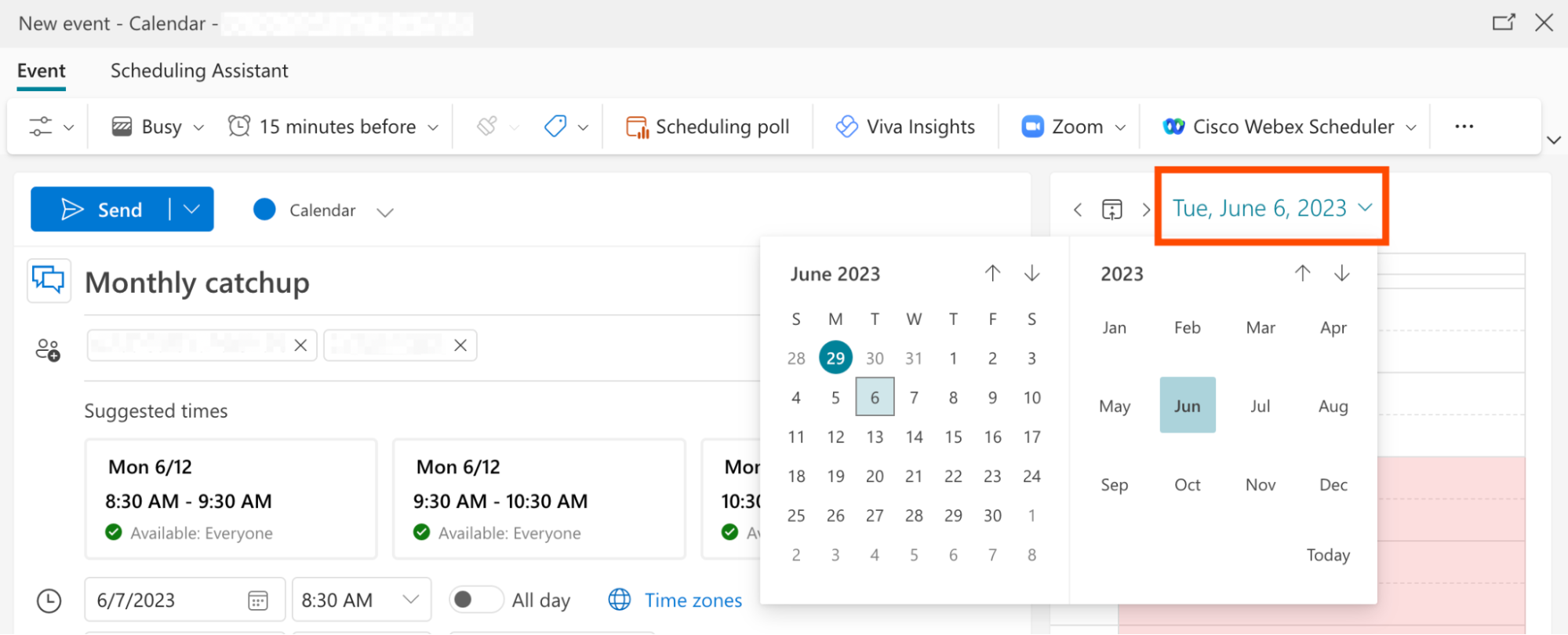
Shared calendars often break down when invites, time zones, and conflict rules clash across team members. A scheduling assistant steps in to manage those moving parts during live coordination. It checks availability across multiple calendars, applies custom rules, and handles invites without forcing everyone to switch apps. Teams that rely on shared calendars and scheduling assistant tools gain consistency. The assistant enforces the same logic for every booking.
This comparison looks at general meeting and scheduling assistants rather than any single platform. It focuses on how different approaches handle shared calendars, time zones, and role permissions. Operations managers can match features to their actual workflow.
For instance, imagine a marketing team spread across New York and London. One member books a campaign review. They discover the creative director is already double-booked in another shared calendar. The assistant catches that instantly. It scans all linked resources before any invite is drafted.
The ideal scheduling assistant balances automated checks with human oversight. It surfaces conflicts before an invite goes out. It lets admins adjust rules without rewriting the entire calendar. In practice most teams start by mapping their existing shared calendar structure. Then they test how each scheduling assistant respects those boundaries during recurring team meetings. A practical tip here is to run a two-week pilot with a small group first. Log how often the tool suggests slots that still feel off. This happens due to unspoken preferences like avoiding early Monday calls after a busy weekend. This hands-on check often reveals nuances that pure feature lists miss.
Comparison Table
Choosing between options starts with seeing how each type of scheduling assistant treats shared calendar data. The table below compares five common patterns across the features that matter most for team meetings. Beyond the columns shown, consider how each option scales. Your team may grow from five to fifty people. You may add contractors who need temporary access without full admin rights.
| Tool type (general) | Shared calendar support | Time-zone handling | Conflict rules | Meeting link/invite behavior | Role-based permissions | Export/download options | Best fit for |
|---|---|---|---|---|---|---|---|
| Scheduling assistant focused on team availability | Reads multiple shared calendars at once | Auto-converts across zones with daylight-saving awareness | Blocks double-booking within defined groups | Generates links after confirming no overlaps | View or edit rights per calendar | CSV of upcoming events | Teams that need fast availability checks |
| Calendar scheduling assistant with round-robin routing | Supports shared calendars and scheduling assistant rules | Keeps original zone on each invite | Distributes meetings evenly across available hosts | Creates personalized links per participant | Host-level approval before final booking | ICS files for import | Support or sales teams with rotating shifts |
| Shared calendar scheduling assistant with conflict locks | Locks time slots across all linked calendars | Flags zone mismatches before sending invites | Prevents any overlapping events once locked | Requires manual link addition after lock | Admin-only unlock capability | Full audit logs in PDF | Projects that demand strict conflict control |
| Virtual meeting assistant that prioritizes meeting links | Works with shared calendars but focuses on link creation | Applies zone rules only to the link itself | Checks conflicts only for the link owner | Auto-generates and inserts links instantly | Link editing limited to organizers | Transcript exports after meetings end | Remote teams that live in video calls |
| Microsoft scheduling assistant pattern (ecosystem-first) | Deep integration with Microsoft 365 shared calendars | Uses Outlook time-zone settings by default | Applies Exchange resource booking policies | Creates Teams links inside Outlook invites | Delegates and resource calendars with granular rights | Native Outlook export formats | Organizations already inside Microsoft 365 |
The first row shows a scheduling assistant built around quick availability scans. It reads every shared calendar the user has access to. It returns open slots within seconds. Time-zone conversion happens automatically. Yet the original zone stays visible. Participants know what time they actually need to join. Conflict rules stay simple. If one person is busy, the slot disappears from results. Meeting links appear only after the assistant confirms no overlaps. Permissions let calendar owners decide who can view or edit. Exports stay limited to basic CSV lists of upcoming events. This pattern suits teams that already keep clean shared calendars. They simply want faster booking. In a real-world example, a product team used this style. They cut their weekly stand-up scheduling time from forty minutes of back-and-forth emails down to under five minutes. This freed the project manager for higher-value work.
The round-robin version adds distribution logic on top of shared calendar support. When several hosts share the same calendar pool, the scheduling assistant assigns meetings in sequence. No single person gets overloaded. Time zones remain attached to each invite rather than converted. This reduces confusion for international participants. Conflict rules focus on host availability instead of group-wide blocks. Links are generated per meeting. They can include custom fields such as preparation notes. Export options expand to ICS files. These import cleanly into any calendar app. This approach works well for sales or support groups that rotate client calls. A practical tip is to set buffer periods between assigned meetings. Hosts have breathing room, especially when calls run long.
A shared calendar scheduling assistant with conflict locks takes a stricter stance. Once a time slot is chosen, the assistant locks it across every linked calendar. No one can accidentally schedule over it. Time-zone handling includes a warning step. It flags any zone mismatch before the invite leaves. Meeting links must be added manually after the lock is set. This adds a small delay but prevents automation errors. Only admins can unlock a slot. Every change writes to an audit log available as PDF. This pattern fits project teams that cannot tolerate last-minute conflicts. One engineering group found the lock feature invaluable during sprint planning weeks. Even a single overlap could derail release timelines. A closely related walkthrough, What to check in meeting assistant outlook before sending invites, picks up where this section ends.
The virtual meeting assistant shifts priority to link generation. It still reads shared calendars. Yet its main job is creating and inserting video links the moment a slot is free. Time-zone rules apply only to the link metadata. Conflict checks cover only the person who owns the link, not the full group. Permissions restrict link editing to organizers. Exports include full transcripts once the meeting ends. Remote teams that run most discussions through video calls often prefer this lightweight approach. Teams report fewer forgotten links and smoother handoffs. The assistant auto-inserts the correct platform based on participant preferences. For the adjacent problem, When your team needs an Office 365 calendar scheduling assistant:… goes deeper into the specifics.
The Microsoft scheduling assistant pattern stays inside the Microsoft 365 ecosystem. It uses existing Exchange resource calendars and Outlook time-zone settings without extra configuration. Conflict rules follow whatever booking policies the Exchange admin has already set. Meeting links appear automatically inside Teams invites. Export options stay within native Outlook formats. This simplifies compliance reporting for larger organizations. Companies already invested in Microsoft tools appreciate how little retraining is needed. The assistant feels like a natural extension of Outlook. For the adjacent problem, Outlook 365 scheduling assistant feature map: desktop, New Outlook,… goes deeper into the specifics.
Advantages and Disadvantages
Shared calendar conflict control
Strong conflict control prevents double bookings before they reach participants. Most systems apply rules at the moment an invite is created rather than after it is sent. This reduces last-minute rescheduling and keeps shared calendars reliable. The trade-off appears when rules become too rigid. Legitimate last-minute changes require admin intervention. This can slow down urgent decisions. Teams that value predictability accept this extra step. Fast-moving groups sometimes bypass the locks and accept occasional overlaps. A useful anecdote comes from a nonprofit. It used strict locks during fundraising season. It avoided three potential double-bookings that would have cost donor meetings.
Invitation customization
Customization lets teams add preparation notes, required documents, or agenda links directly inside the invite. A scheduling assistant that supports rich text fields keeps everyone aligned before the meeting starts. On the downside, excessive customization options can overwhelm users who simply need a time and place. Striking the right balance usually means offering templates that cover 80 percent of common meeting types. Advanced fields remain optional. Practical tip: test templates with newer team members. Confirm they are intuitive before rolling them out company-wide.
Handling online meeting assistant links
Automatic link insertion saves organizers the step of creating and pasting video details. A virtual meeting assistant that handles this step reduces errors. It keeps links consistent across recurring series. The limitation surfaces when the assistant only supports one video platform. Teams that use multiple tools must switch between assistants or add links manually. Checking platform compatibility before rollout avoids this friction. For hybrid teams, always verify that the generated links include dial-in options for those joining by phone.
Admin setup effort
Initial setup determines how quickly a new scheduling assistant delivers value. Simpler tools connect to shared calendars in minutes. They require only basic permission grants. More powerful options with round-robin logic or conflict locks demand time to map existing rules. They also require testing edge cases. Organizations that invest the setup time gain long-term consistency. Those that need speed often start with lighter tools and migrate later. One operations lead recommends documenting every custom rule in a shared wiki. Future admins can replicate the configuration without guesswork.
Reporting and analytics features
Many scheduling assistants now include built-in analytics. These track meeting frequency, average duration, and no-show rates. These insights help teams refine their calendar habits over time rather than guessing where time is lost. The downside is that overly detailed reports can create privacy concerns. Employees may feel their availability is being monitored too closely. Start with anonymized summaries. Continue until the team agrees on what level of detail feels comfortable.
Keep This in Mind
Start any evaluation by confirming that the scheduling assistant respects the shared calendar rules already in place. Next verify time-zone behavior with a test meeting that crosses regions. Finally check how meeting links are generated. Check whether they can be customized without extra steps. Shortlist two or three scheduling assistant options that pass these checks. Then run a simulated scheduling scenario using real team calendars. This practical test reveals whether the tool fits daily workflow before any full rollout begins. Keep a simple scorecard during testing. It rates ease of use, conflict accuracy, and export quality. Decision-makers have clear data points rather than opinions alone.
Frequently Asked Questions
How long does it typically take to connect a new scheduling assistant to existing shared calendars? Most tools complete the initial sync in under ten minutes once permissions are granted. Larger organizations with complex delegation rules may need an extra day for testing.
Can a scheduling assistant work across both Google Workspace and Microsoft 365 calendars at the same time? Yes, several options support cross-platform connections. You will want to verify that time-zone and conflict logic remain consistent. This applies when calendars from different ecosystems are linked.
What happens if the scheduling assistant goes offline during a busy booking period? Most services queue requests and process them once connectivity returns. Critical teams often keep a manual fallback process documented for such rare events.
Further Reading
- Scheduling assistant downloads: what to check before installing a meeting schedule assistant
- Zoom meeting assistant, virtual meeting assistant, or online meeting assistant—what changes in scheduling?
- Set up a meeting schedule assistant for fast approvals and fewer conflicts
- Choosing the right Google scheduling assistant: a decision framework for Gmail-driven meetings
- What people ask before buying a Google Calendar scheduling assistant for Gmail