What Is Webex Assistant For Webex Meetings?
Webex assistant for webex meetings lets hosts trigger common actions through voice instead of clicking through menus. Many hosts already know the built-in buttons for recording, inviting people, or ending a call. Yet the assistant adds a parallel path that keeps attention on the conversation. The choice between speaking a command and reaching for the mouse becomes a practical decision rather than a feature race.
In most systems the assistant listens for short phrases while the meeting runs. It then carries out the task without forcing the host to leave the video window. This setup suits people who run frequent sessions and want fewer interruptions from interface navigation. For instance, a project manager running weekly team syncs can say “Hey Webex, invite Sarah” mid-discussion. This happens without breaking eye contact on camera. The flow stays natural and professional. A closely related walkthrough, Top AI Meeting Assistants 2026, picks up where this section ends.
Practical tip: practice the exact trigger phrases in a quiet test call first. This helps the recognition engine learn your cadence and accent. It reduces false starts during real sessions.
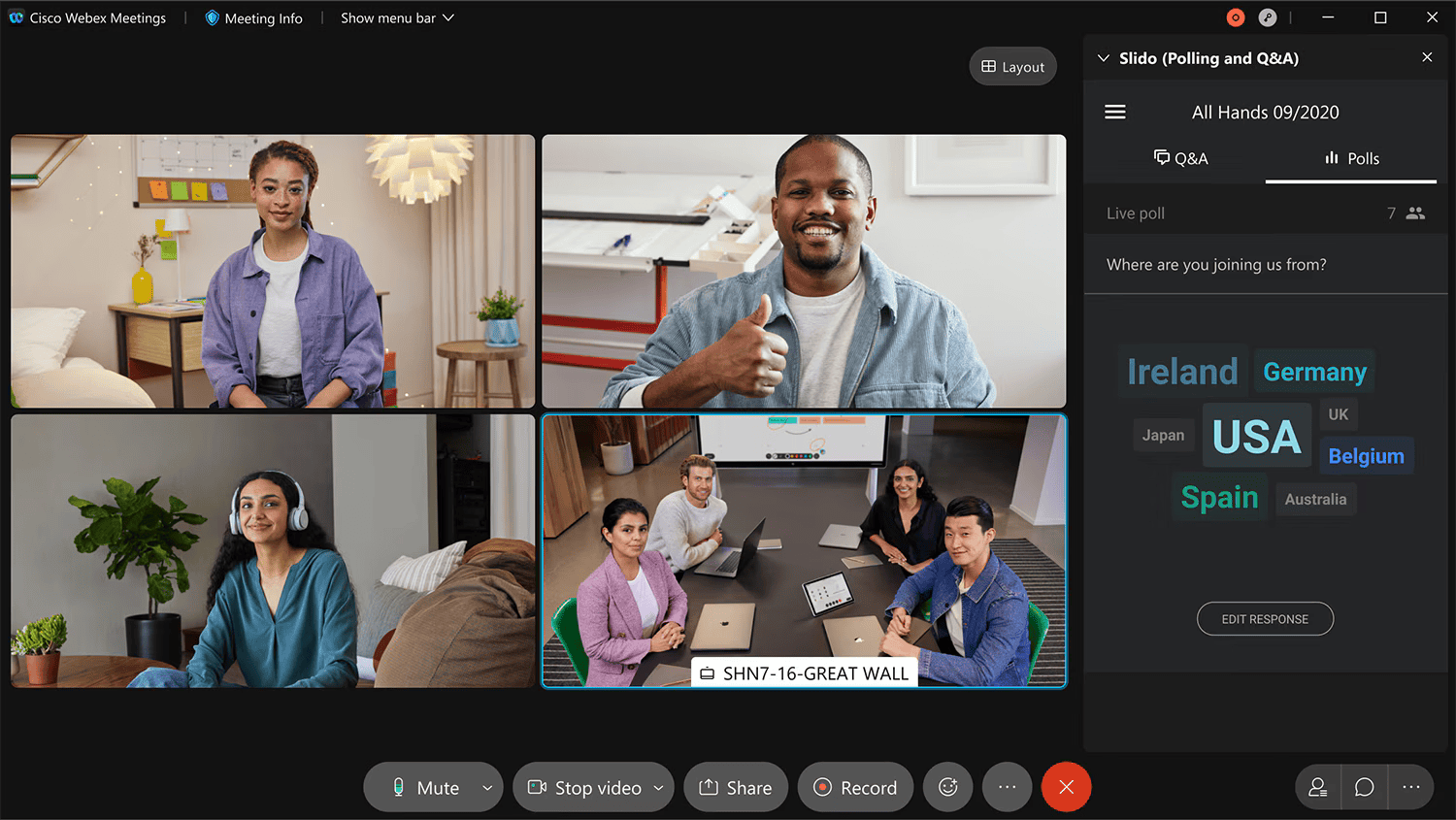
webex assistant for webex meetings works alongside the standard controls rather than replacing them. Hosts can still use the toolbar whenever voice recognition is unreliable or privacy concerns arise. The assistant simply expands the options available during live discussions. Another example comes from sales teams who often juggle multiple screens. Speaking “show grid view” lets them reference participant reactions instantly while still typing notes. If the room has a policy against always-on microphones, simply mute the assistant through the settings panel and fall back to clicks. This flexibility means webex meeting assistant becomes a helpful sidekick rather than an all-or-nothing switch.
Comparison Table
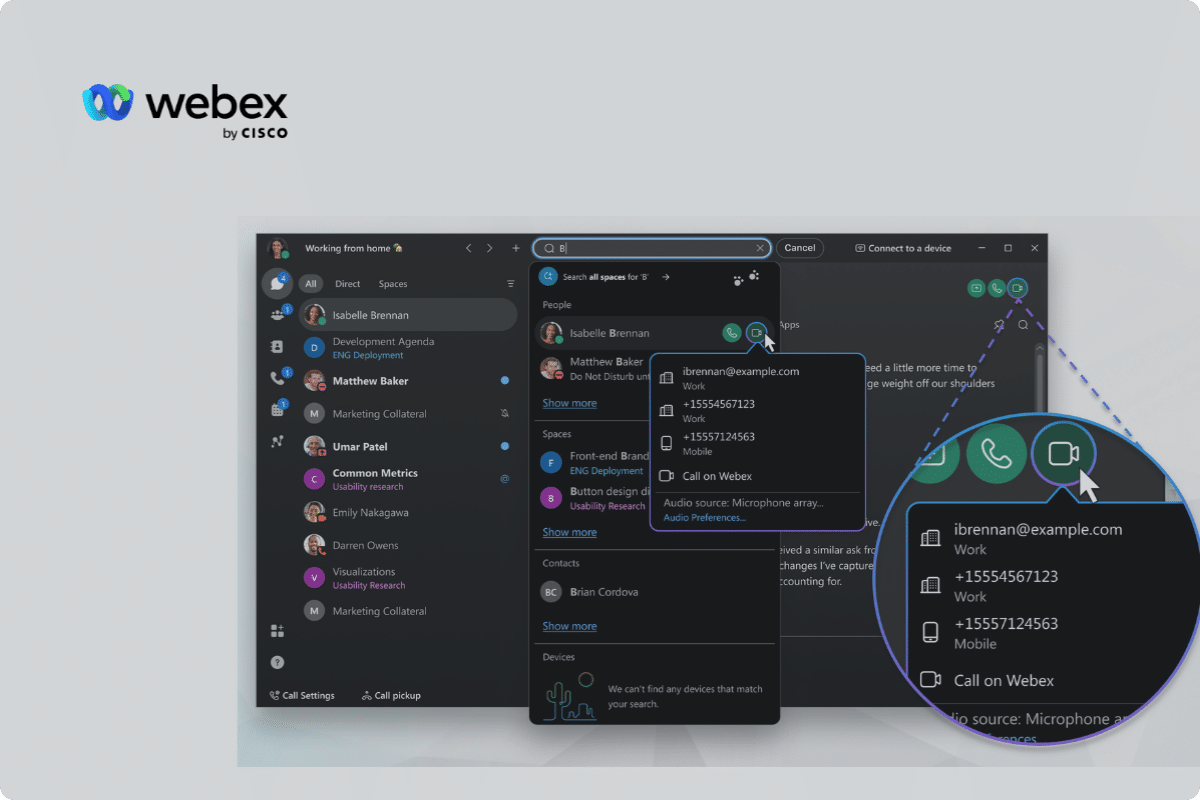
Webex assistant for webex meetings shines when the host needs to stay focused on participants. The table below shows how five common tasks compare when handled by voice versus the manual interface. Times are typical for an experienced user on a standard laptop. For more context, see more details. For the adjacent problem, Enable Webex AI assistant without breaking meeting permissions: a… goes deeper into the specifics.
| Task | Voice Command Method | Manual Method | Time to Complete |
|---|---|---|---|
| Start recording | Say “start recording” after the assistant prompt | Click Record button in toolbar, confirm settings | Voice: 3 seconds; Manual: 8 seconds |
| Invite participant | Say “invite [name]” or “add [email]” | Open Participants panel, type address, send invite | Voice: 5 seconds; Manual: 15 seconds |
| Change layout | Say “show speaker view” or “grid view” | Open Layout menu, select option from list | Voice: 4 seconds; Manual: 10 seconds |
| End meeting | Say “end meeting for all” | Click End Meeting, choose scope, confirm | Voice: 4 seconds; Manual: 9 seconds |
| Generate summary | Say “create summary” at meeting close | Open recording panel, select export, choose format | Voice: 6 seconds; Manual: 20 seconds |
Voice commands reduce the number of clicks and keep the host’s hands free during discussions. The manual route still offers more granular settings. Examples include choosing a specific recording folder or adjusting participant permissions before the invite goes out. Hosts who value speed often prefer the assistant for routine actions. They reserve the interface for tasks that need extra options. Webex assistant for webex meetings therefore fits best in meetings where timing matters more than fine control. Consider a webinar host managing 50 attendees. Using the voice path to start recording saves enough time to greet late joiners personally instead of hunting through menus. This pairs well with Use Webex Assistant Closed Captioning Without Losing Context, which works through concrete examples.
Some users combine both methods. They speak the initial command through the assistant, then open the toolbar only if the result needs adjustment. This hybrid approach appears in longer sessions where conditions change and quick corrections become necessary. The time savings add up across a full day of calls, especially when the same patterns repeat. One trainer reported saving nearly twelve minutes of cumulative navigation time during an eight-hour workshop series. This happened simply by mixing voice prompts with occasional manual tweaks for custom recording locations. For the adjacent problem, Is the rev meeting assistant market getting too crowded? goes deeper into the specifics.
Background noise can affect recognition accuracy. The manual method remains useful in noisy rooms or when multiple people speak at once. The assistant also requires an active internet connection for processing. The built-in buttons work offline once the meeting has started. These trade-offs explain why many hosts keep both options ready rather than choosing one exclusively. In practice, test your environment ahead of time. Run a short voice-only rehearsal in the actual meeting room to spot any acoustic issues early. This pairs well with Trusted outputs from smart meeting assistant for revenue teams, which works through concrete examples.
Real-World Timing Scenarios
During a fast-moving client pitch, saying “invite [name]” lets the host bring in a last-minute expert without pausing the slide deck. In contrast, a finance review meeting might benefit from the manual method when permissions must be set precisely before sharing sensitive documents. Both paths remain available. They let the host decide based on context rather than habit. For the adjacent problem, ai meeting recap tools for sales calls in Webex: what to compare goes deeper into the specifics.
Strengths and Weaknesses
| Aspect | Voice Control | Manual Control |
|---|---|---|
| Multitasking | Strong; host can keep camera and notes visible | Weaker; requires shifting focus to toolbar |
| Noise tolerance | Weaker; recognition drops with overlapping speech | Strong; unaffected by room sound |
| Precision | Moderate; works for standard commands only | High; full settings remain available |
| Learning curve | Low once phrases are known | Low for users already familiar with menus |
Voice control helps during fast-paced calls where every second counts. Manual control stays reliable when the environment or task grows complex. Most hosts test both paths in the same meeting to see which feels smoother for their workflow. A practical tip is to create a personal cheat sheet of the ten most-used phrases and tape it near your monitor until the wording becomes automatic. Anecdotes from remote-first companies show that teams adopting webex assistant for webex meetings often report higher engagement. The host appears more present and less distracted by screen navigation.
When to Prefer One Method Over the Other
Choose voice when running small internal stand-ups or when your hands are occupied with other tools. Switch to manual during high-stakes negotiations or when background conversations could confuse the microphone. Over a month of mixed usage, most users settle into a comfortable rhythm. They blend the two approaches without overthinking the choice each time.
Testing assistant with small tasks
Start with a single low-stakes meeting and try the assistant on two or three tasks. Compare the experience against the usual button clicks to decide whether the speed gain justifies any recognition hiccups. If the voice route feels useful, look at the steps for enable webex assistant so the feature activates before the next scheduled call. Over time the combination of voice and manual options gives hosts more flexibility without forcing a full switch. Webex assistant for webex meetings therefore serves as a practical addition rather than a complete replacement for the interface already in place. Keep a short log of which commands worked smoothly and which needed follow-up clicks. Reviewing that log after a week reveals patterns that help refine your personal workflow even further.
- Core Components of the Cisco Webex Assistant
- Connecting Calendars to a Virtual Scheduling Assistant
- Setting Up An Assistant For Automatic Google Calendar Bookings
{“@type”:”Article”,”image”:[“https://meetingadvisor.io/wp-content/uploads/2026/08/webex-assistant-for-webex-meetings-vs-built-in-meeting-contr-1.jpg”],”author”:{“name”:”Edisyn”,”@type”:”Organization”},”@context”:”https://schema.org”,”headline”:”Webex Assistant Compared With Built-in Meeting Controls”,”keywords”:”webex assistant for webex meetings, webex assistant, webex meeting assistant”,”publisher”:{“name”:”Meeting Advisor”,”@type”:”Organization”},”wordCount”:1158,”inLanguage”:”en”,”description”:”Side-by-side examination of tasks performed by voice versus mouse or keyboard inside Webex, helping users decide when the assistant adds value.”,”dateModified”:”2026-08-01T16:06:53.002Z”,”timeRequired”:”PT6M”,”datePublished”:”2026-08-01T16:06:53.002Z”}
{“@type”:”BreadcrumbList”,”@context”:”https://schema.org”,”itemListElement”:[{“item”:”https://edisyn.io”,”name”:”Home”,”@type”:”ListItem”,”position”:1},{“item”:”https://edisyn.io/category/ai-tools/”,”name”:”AI Tools”,”@type”:”ListItem”,”position”:2},{“name”:”Webex Assistant Compared With Built-in Meeting Controls”,”@type”:”ListItem”,”position”:3}]}