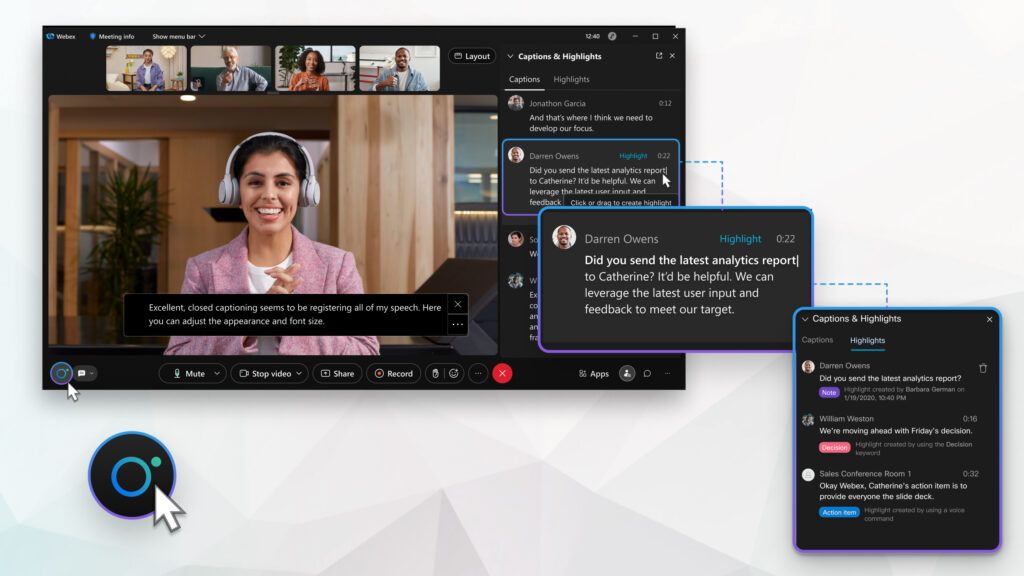
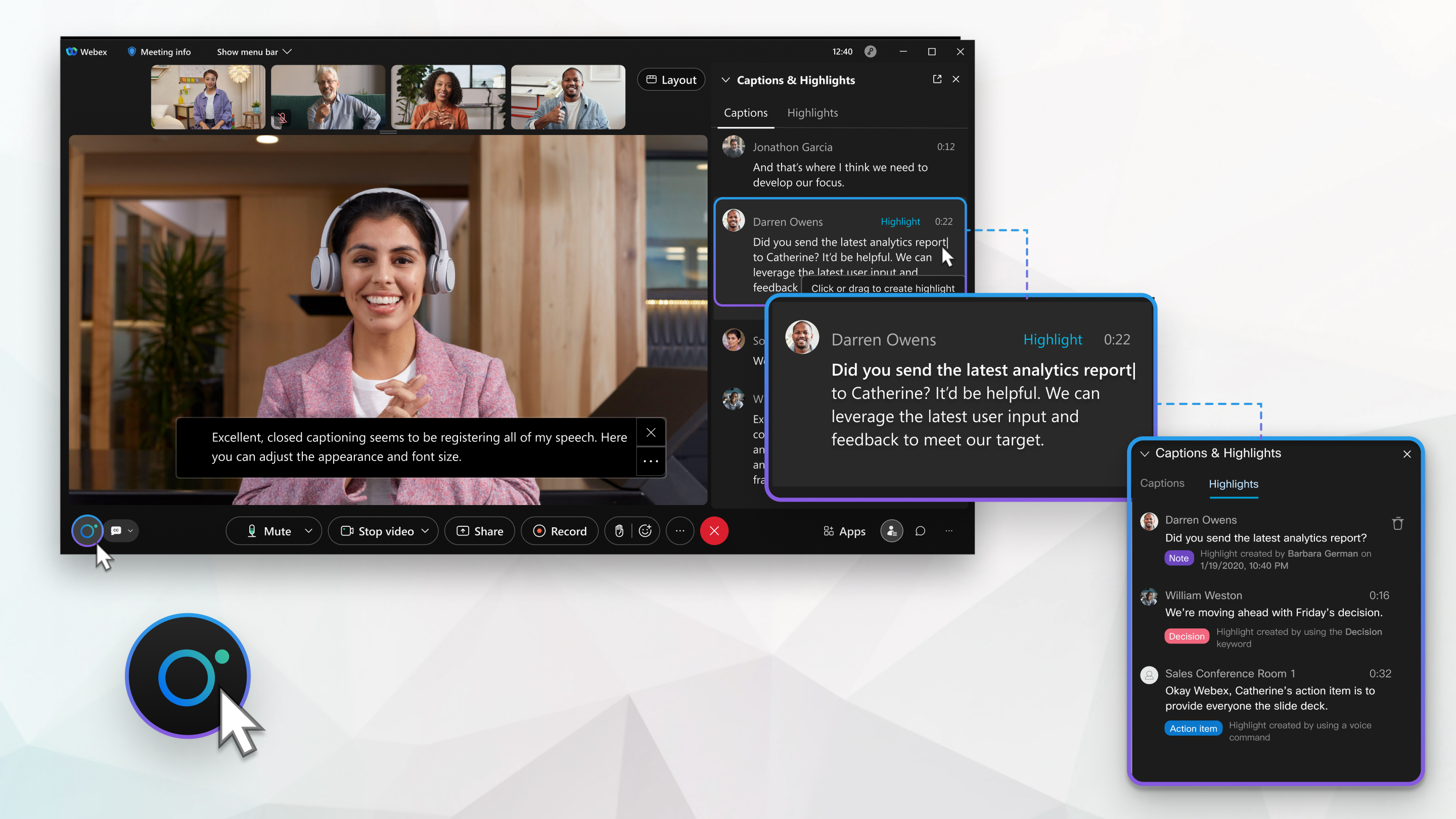
Purpose of learning Webex assistant commands
Webex meetings often move quickly. Reaching for the mouse or keyboard can break your focus. The Webex assistant accepts only a limited set of spoken phrases. Learning those phrases lets you keep both hands free and your attention on the discussion. When you know the exact wording, you can start or stop recording. You can invite late arrivals. You can change the layout without leaving the conversation flow. This skill pairs naturally with tools like an ai meeting assistant that listens alongside you. It surfaces context from your notes or files. In short, mastering webex assistant commands turns a passive recording tool into an active helper. The helper responds the moment you speak. For instance, imagine you are deep in a client pitch. You suddenly need to capture the agreement in the cloud. A quick voice command handles it. You maintain eye contact and momentum with the prospect.
The phrases themselves are short and consistent across most Webex desktop and mobile versions released before 2026. Once you internalize the pattern, you spend less time clicking menus. You spend more time contributing. Many users also combine these commands with broader platforms such as a zoom ai meeting assistant when they switch between services during the same workday. A practical tip is to practice the core webex assistant commands in a test meeting first. The rhythm feels automatic during high-stakes sessions.
Starting Webex recording
1. Start recording the session
Say “Hey Webex, start recording” to begin capturing audio and video. The assistant confirms with a short tone and on-screen banner. This command works whether you host the meeting or join as a participant with recording rights. It saves the file to the cloud folder you selected in advance. Nothing gets lost if the call ends abruptly. In practice, many project managers use this at the very start of weekly syncs. They ensure every decision is documented without extra clicks. If the tone does not sound, simply repeat the phrase after a two-second pause.
2. Stop or pause recording
When the discussion moves to a confidential topic, say “Hey Webex, pause recording.” Resume later with “Hey Webex, resume recording.” These two commands keep the transcript clean. They respect privacy without hunting through menus. A helpful example occurs during budget reviews where sensitive salary figures come up. Pausing prevents the information from appearing in the final shared file.
3. Invite participants during the call
Need to pull in a colleague who just became available? Use “Hey Webex, invite [name]” or “Hey Webex, invite everyone from the project channel.” The assistant sends the link instantly. It announces when the person joins. This keeps the group informed without you typing email addresses. This feature shines in global teams where time-zone differences often cause last-minute additions.
4. Switch video layouts
Visual focus matters in presentations. Tell the assistant “Hey Webex, switch to speaker view” or “Hey Webex, show grid layout.” The change happens within a second. Everyone sees the same arrangement unless individuals have overridden their personal settings. Try switching to grid view right before a round-robin status update. Every participant feels equally visible. For more context, see edisyn.io. For the adjacent problem, Webex meeting assistant vs Webex voice assistant: choosing the right… goes deeper into the specifics.
5. Share or stop sharing content
Instead of clicking the share button, say “Hey Webex, share my screen” or “Hey Webex, share the second monitor.” When the segment ends, “Hey Webex, stop sharing” returns the meeting to full-screen video. This sequence keeps momentum high during demos. One sales team reports using screen-share commands to move seamlessly between product slides and live dashboards. The follow-up piece Use Webex Assistant Closed Captioning Without Losing Context covers this in more practical detail.
6. Mute or unmute yourself
Background noise appears without warning. The phrase “Hey Webex, mute me” or “Hey Webex, unmute me” works even when your microphone icon is hidden behind other windows. The assistant also confirms the new status aloud. You know the command registered. This proves especially useful on laptops where the taskbar is often covered by shared content. The follow-up piece ai meeting recap tools for sales calls in Webex: what to compare covers this in more practical detail.
7. Ask for a quick summary
After a long exchange, say “Hey Webex, summarize the last five minutes.” The assistant reads back decisions and action items. It gives everyone a chance to correct details before the meeting moves on. This feature reduces follow-up emails later. Schedule the summary request just before moving to the next agenda item for maximum clarity. This pairs well with Enable Webex AI assistant without breaking meeting permissions: a…, which works through concrete examples.
8. End the meeting for everyone
Hosts can close the session cleanly with “Hey Webex, end meeting for all.” The assistant asks for confirmation. It posts the recording link in the chat. It saves any whiteboard notes automatically. Always wait for the confirmation prompt to avoid accidental endings. The follow-up piece Webex voice assistant versus Webex meeting assistant: which one… covers this in more practical detail.
9. Check current recording status
If you lose track during a busy call, simply ask “Hey Webex, is recording active?” The assistant replies with the current state and remaining cloud storage. It helps you stay compliant with company policies on session capture.
Worth Remembering
- “Hey Webex, start recording” remains the single most-used command in daily stand-ups.
- Invite commands save the most time when participants join late or from different time zones.
- Layout switches keep visual attention on the current speaker during technical reviews.
- Summary requests work best right after complex decisions rather than at the very end.
- Always wait for the short confirmation tone before speaking the next command.
- Practice the full phrase set once a week so muscle memory stays sharp even after long breaks between meetings.
Benefits of eight Webex assistant commands
Learning these eight webex assistant commands cuts down on mouse clicks. It keeps you present in the conversation. The same habits transfer when you use an ai meeting assistant across other platforms. Try one new phrase in your next scheduled call. Notice how the rhythm changes. Over time the commands become second nature. You spend more energy on the people in the room than on the controls. See edisyn.io for more context on pairing voice tools with real-time assistance during live discussions. Users who adopt the full set report finishing meetings with fewer distractions and cleaner follow-up notes.
Frequently Asked Questions
How accurate are webex assistant commands in noisy environments?
The system performs best with a headset or in quiet rooms. Background chatter can cause misfires. Speak clearly and pause briefly between phrases when using webex assistant commands.
Can I customize the wake word for webex voice assistant?
Currently the wake phrase is fixed as “Hey Webex.” Future updates may allow alternatives for users who prefer different triggers.
Do webex assistant commands work on mobile devices?
Yes, both iOS and Android versions support the core set. Layout changes may respond slightly slower than on desktop clients.
What happens if the assistant misunderstands a command?
Simply repeat the phrase after the error tone. The system logs common misrecognitions to improve future accuracy across your account.
Related Topics
- Webex Assistant Compared With Built-in Meeting Controls
- Core Components of the Cisco Webex Assistant
- Activate Webex Assistant on Your Account in Minutes
- Virtual Scheduling Assistants in Distributed Teams
- Connecting Calendars to a Virtual Scheduling Assistant
{“@type”:”Article”,”image”:[“https://meetingadvisor.io/wp-content/uploads/2026/07/recognized-webex-assistant-commands-in-meetings-1.jpg”],”author”:{“name”:”Edisyn”,”@type”:”Organization”},”@context”:”https://schema.org”,”headline”:”Recognized Voice Commands in Webex Meetings”,”keywords”:”webex assistant commands, webex voice assistant, webex assistant for meetings”,”publisher”:{“name”:”Meeting Advisor”,”@type”:”Organization”},”wordCount”:1154,”inLanguage”:”en”,”description”:”This listicle assembles the actual spoken commands users rely on when interacting with the Cisco Webex assistant during live sessions. It fills the gap for professionals who need quick reference without digging through product documentation.”,”dateModified”:”2026-07-25T16:06:58.101Z”,”timeRequired”:”PT6M”,”datePublished”:”2026-07-25T16:06:58.101Z”}
{“@type”:”BreadcrumbList”,”@context”:”https://schema.org”,”itemListElement”:[{“item”:”https://edisyn.io”,”name”:”Home”,”@type”:”ListItem”,”position”:1},{“item”:”https://edisyn.io/category/ai-tools/”,”name”:”AI Tools”,”@type”:”ListItem”,”position”:2},{“name”:”Recognized Voice Commands in Webex Meetings”,”@type”:”ListItem”,”position”:3}]}