Microsoft Scheduling Assistant friction reduction

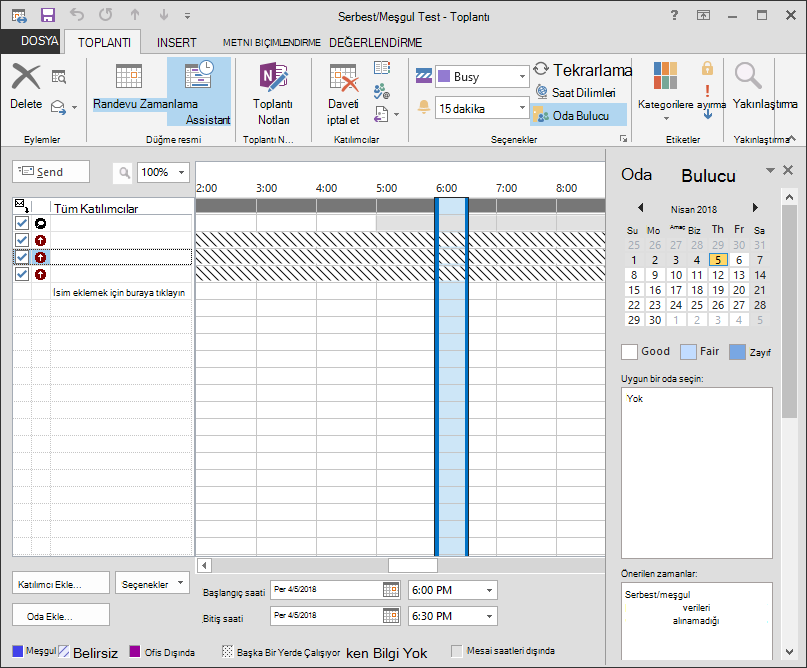
Teams that juggle multiple shared calendars often run into scheduling friction. That friction feels different from a Microsoft-centric experience. The core question becomes which path reduces friction. It must respect existing permission structures and meeting link policies. Microsoft scheduling assistant sits inside Outlook and Microsoft 365. It offers native tools for finding free time. Those calendars already live in the same tenant.
Many organizations already rely on Exchange for resource booking and delegation. So the assistant can leverage those same permissions. It does so without extra setup layers. Shared calendars and scheduling assistant patterns, by contrast, tend to span several platforms. They require manual rules or third-party connectors. Choosing between the two approaches therefore depends on how tightly your permission model stays inside Microsoft tools. It also depends on how meeting workflows stay inside those tools.
The sections that follow compare concrete behaviors. IT admins and operations leads can decide what fits their environment. For instance, imagine a marketing team in a mid-sized company. They are trying to coordinate product launches. When everyone already works inside Outlook, the assistant pulls real-time availability in seconds. No one needs to leave their inbox.
Teams weighing microsoft scheduling assistant against shared calendars and scheduling assistant setups usually find that the Microsoft option works best. This happens when permissions stay inside the Microsoft 365 ecosystem. Shared calendar patterns suit mixed tool environments instead. Microsoft scheduling assistant reduces the need for external connectors. This occurs when everyone already uses Outlook. Shared calendars and scheduling assistant approaches give more flexibility. This happens when some teams prefer Google Calendar or other platforms. In practice, this means a sales team that occasionally collaborates with external consultants can stick with shared calendars. They avoid forcing those partners into Microsoft accounts. An internal finance group benefits from the seamless delegation already built into Exchange.
How the Assistant Integrates with Daily Workflows
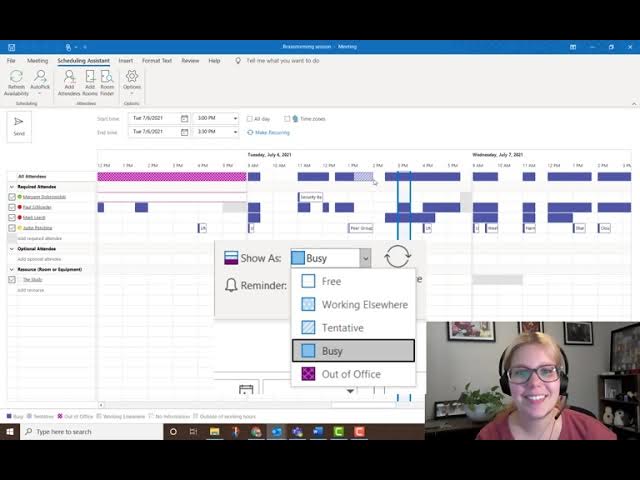
One overlooked advantage appears during recurring project check-ins. A project manager can open the scheduling assistant. They see overlapping free slots across five team calendars. They send a Teams invite in under a minute. Because the tool respects existing out-of-office flags and resource calendars for conference rooms, double bookings drop dramatically. This drop occurs compared with manual checks across disconnected systems.
Side-by-Side Comparison
| Evaluation criterion | Microsoft scheduling assistant approach | Shared calendars and scheduling assistant approach | What to test in your environment |
|---|---|---|---|
| Delegated/shared calendar access | Uses native Exchange delegation and folder permissions already present in Microsoft 365. | Requires connector rules or shared mailbox setups that may span multiple platforms. | Verify current delegation depth and whether external users need access. |
| Conflict detection reliability | Reads free/busy data directly from Exchange, delivering near real-time results inside the tenant. | Depends on sync frequency of each connected calendar source. | Run a week of test bookings during peak hours to measure missed conflicts. |
| Invite and meeting link consistency | Generates Teams links automatically when the organizer account is Microsoft-based. | May produce links from whichever platform created the event, leading to mixed experiences. | Check whether all participants can join without extra authentication steps. |
| Admin control breadth | Central policies live in the Microsoft 365 admin center and apply across the tenant. | Controls are often scattered across each calendar platform and connector service. | Map which policies must apply uniformly versus those that can differ by team. |
| Onboarding time for requesters | New users who already have Outlook need little extra training. | Users must learn the shared calendar interface and any booking rules layered on top. | Time how long it takes a new hire to book their first three meetings. |
| Handling virtual meeting assistant workflows | Integrates directly with Teams for recording, transcription, and post-meeting notes. | Requires additional meeting assistant tools or plugins to achieve similar live support. | Measure how often users need live help during calls and whether existing tools cover that need. |
The table above shows six practical criteria. These criteria come up every time teams standardize on a meeting scheduling assistant. Delegated access works cleanly inside Microsoft scheduling assistant. This works because Exchange already tracks who can see whose calendar. Shared calendars and scheduling assistant setups often need extra connectors. This need arises when some departments sit outside the Microsoft tenant.
Conflict detection stays reliable when free/busy data lives in one system. Yet it can lag when calendars sync every fifteen minutes across platforms. Invite links stay consistent when the organizer account always creates Teams meetings. But mixed environments sometimes produce Zoom links alongside Teams links in the same thread. Admin control remains centralized when policies sit in the Microsoft 365 admin center. Shared calendar patterns spread those controls across several services. The follow-up piece Outlook 365 scheduling assistant feature map: desktop, New Outlook,… covers this in more practical detail.
Onboarding stays short for users already comfortable with Outlook. Yet it lengthens when requesters must learn a separate booking portal. Virtual meeting assistant workflows integrate directly when the call happens in Teams. But they require extra plugins when the call platform changes. In most systems these differences surface during the first month of testing. Running a permission and reschedule test before standardizing saves later rework. For the adjacent problem, 2026: Meeting Scheduling Assistant for Small Teams Checklist goes deeper into the specifics.
Consider a scenario where an HR department books interview rooms daily. The Microsoft path surfaces room conflicts instantly. A hybrid setup once caused two candidates to arrive for the same slot. Sync lagged by twenty minutes in that case. The follow-up piece What Makes a Scheduling Assistant Effective for Teams covers this in more practical detail.
Users looking for additional live support during calls can check Edisyn for real-time assistance options. Those options complement either scheduling path. The choice between microsoft scheduling assistant and shared calendars and scheduling assistant patterns often comes down to whether the organization wants one integrated stack. It also depends on whether they want maximum flexibility across tools.
Testing Conflict Detection in Real Conditions
Run your test during the busiest week of the quarter. Do this rather than a quiet period. Ask two team members to book overlapping meetings deliberately. Note whether each system flags the clash before the invite goes out. This simple exercise reveals whether your current delegation settings already cover the depth needed. It also shows if extra connector configuration will be required. For the adjacent problem, What to check in meeting assistant outlook before sending invites goes deeper into the specifics.
Strengths and Weaknesses
| Area | Microsoft scheduling assistant strengths | Microsoft scheduling assistant weaknesses | Shared calendars and scheduling assistant strengths | Shared calendars and scheduling assistant weaknesses |
|---|---|---|---|---|
| Setup effort | Uses existing Exchange permissions with minimal new configuration. | Limited when some users sit outside Microsoft 365. | Works across any calendar platform with connectors. | Requires ongoing sync maintenance and rule updates. |
| Reliability for shared calendars | Strong when all calendars live in the same tenant. | Weak when external calendars must participate. | Handles mixed vendor calendars without forced migration. | Sync delays can create double bookings during busy periods. |
| Flexibility for virtual meeting assistant link behavior | Consistent Teams links and built-in recording controls. | Less flexible if the organization prefers another video platform. | Supports any meeting platform the connector allows. | Link generation rules must be maintained separately for each platform. |
Setup effort stays low with microsoft scheduling assistant when Exchange already contains the needed delegation rights. The same approach becomes cumbersome once external partners or acquired teams use different calendar systems. Shared calendars and scheduling assistant patterns absorb those mixed environments more easily. Yet they introduce sync delays that can produce double bookings. Reliability improves inside a single tenant. Free/busy data never leaves the Exchange server. Flexibility for virtual meeting assistant links remains high when connectors support every platform in use. But each added connector adds another rule set to maintain. Most organizations discover these trade-offs during a short pilot. They do not discover them through documentation alone. One operations lead shared that their company avoided a costly migration. They kept a small remote design team on Google Calendar. They routed all internal meetings through the Microsoft assistant. For the adjacent problem, Meeting schedule assistant download for fast approvals and fewer… goes deeper into the specifics.
Evaluating Long-Term Maintenance Costs
Beyond the initial setup, track how many hours per month your team spends updating connector rules. They also spend time troubleshooting sync errors. In environments with frequent staff changes, the Microsoft path often saves time. Permissions update automatically when a new hire joins the tenant. Shared-calendar connectors may need manual rule tweaks for each departure or arrival. A closely related walkthrough, Top AI Meeting Assistants 2026, picks up where this section ends.
Practical Tips
If permissions and delegation already live inside Microsoft 365, microsoft scheduling assistant usually delivers faster conflict detection. It also delivers simpler onboarding. When many teams rely on shared calendars that span platforms, shared calendars and scheduling assistant patterns provide the flexibility needed. They do so without forcing migrations. Run a permission and reschedule test with both approaches before locking in a standard. Track how often meeting links break for external participants. Track how quickly new users can book their first events. The results of that short test almost always point to the clearer path. That path fits your specific permission structure and meeting link policies. Start by exporting a two-week sample of past meeting requests. Replay them in both systems to surface hidden friction points early.
About this guide: This comparison draws from publicly available documentation on Microsoft 365 scheduling features. It also draws from common cross-platform calendar integration patterns. These help operations and IT teams evaluate options.
Related subtopics: ai scheduling assistant, ai meeting assistant, scheduling assistant google calendar, zoom virtual assistant, enable webex assistant.
Frequently Asked Questions
How does microsoft scheduling assistant handle external guests who lack Microsoft accounts? The assistant still generates a standard calendar invite with a Teams link. It allows external participants to join via browser without signing in. Advanced features like live transcription remain limited to internal users.
Can shared calendars and scheduling assistant setups support automated room booking the same way Exchange does? They can, but room availability must sync through connectors. This sometimes introduces a short delay. That delay may allow double bookings if two people reserve the same space within the same sync window.
You May Also Like
- Scheduling assistant downloads: what to check before installing a meeting schedule assistant
- Zoom meeting assistant, virtual meeting assistant, or online meeting assistant—what changes in scheduling?
- Set up a meeting schedule assistant for fast approvals and fewer conflicts
- Which scheduling assistant best fits shared calendars and team meetings?
- Choosing the right Google scheduling assistant: a decision framework for Gmail-driven meetings