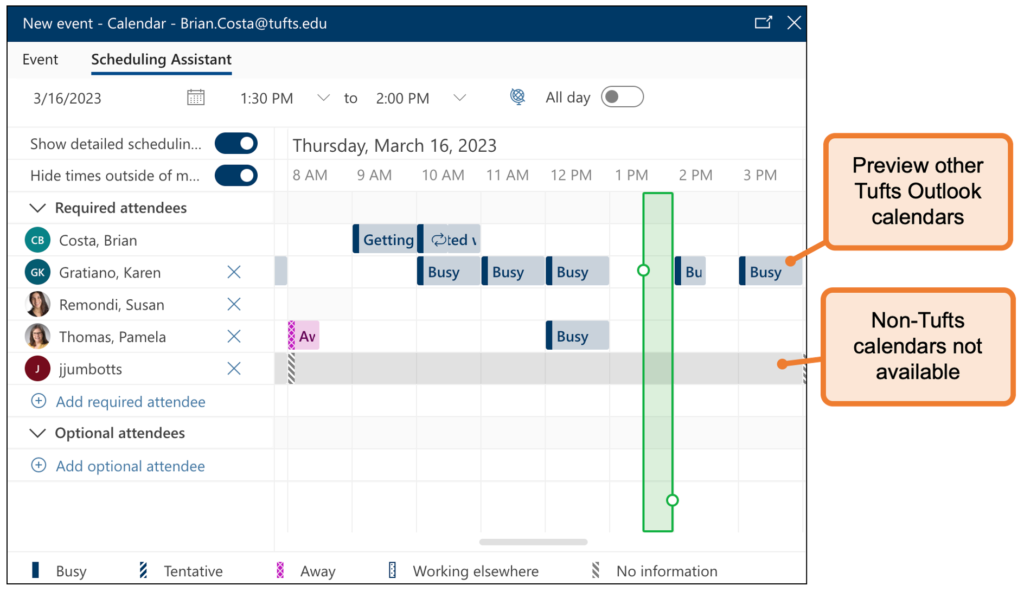
Setting up schedule reminders
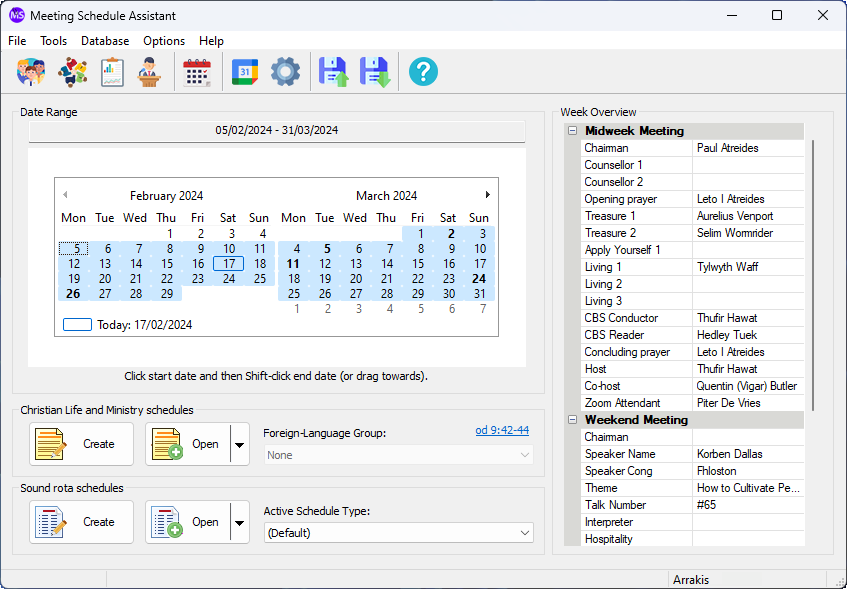
Administrators who manage distributed teams often struggle to keep everyone aligned when schedules change quickly. A reliable meeting schedule assistant becomes essential once multiple people rely on the same shared calendars. This guide walks through a practical sequence for setting up reminders that actually reach the right people at the right time. For instance, imagine a marketing team spread across three continents where a last-minute client demo gets rescheduled; without precise reminders, half the group might join the wrong Zoom link or miss the updated time entirely. In practice, this leads to lost revenue opportunities and frustrated stakeholders who expect seamless coordination.
The process works across most group calendar tools because it focuses on clear definitions and testing rather than any single vendor’s features. You will define event types, choose lead times, pick notification channels, and review what happened after meetings occur. Following these steps reduces the chance that someone misses an important call or deadline. Teams that adopt this methodical approach frequently report a noticeable drop in no-shows, especially when using a shared calendars and scheduling assistant that integrates with their existing project management platforms. One project manager shared how implementing these reminders cut missed stand-ups by nearly 40 percent within the first month.
Steps
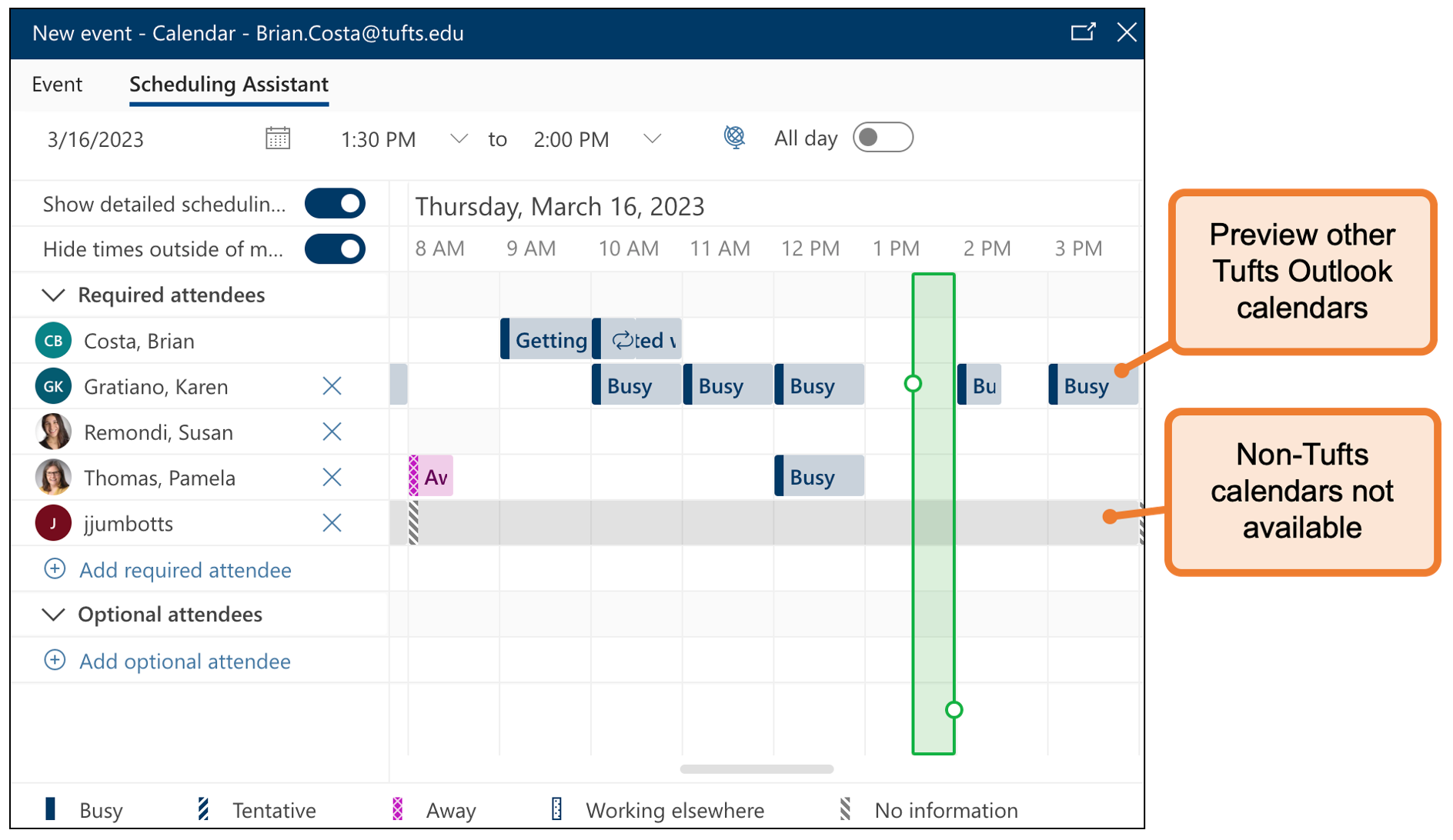
Configuring Reminders with Meeting Schedule Assistant
- Start by listing every type of event your team schedules. Sales calls, weekly stand-ups, client demos, and quarterly reviews each need different reminder timing. A 15-minute internal check-in might only need a 10-minute heads-up, while a client presentation could require 24 hours plus a same-day nudge. Write the list on a shared document so everyone sees the same categories and can suggest additions later. Consider breaking the list into internal versus external events; this extra layer helps when your calendar scheduling assistant needs to apply different notification rules based on whether clients or vendors are involved.
- Next set default lead times for each category inside your calendar scheduling assistant. Most tools let you create templates that apply automatically when someone creates a new event. Choose 30 minutes for quick syncs, two hours for cross-department meetings, and one full day for anything involving external guests. These defaults save time and keep the system consistent even when new team members join. A practical tip is to color-code the templates in the interface so anyone glancing at the shared calendar instantly recognizes the urgency level of each appointment.
- Assign notification channels once the lead times are in place. Email works for most people, but some teams prefer Slack or Microsoft Teams pings because they live inside the same workspace they already monitor. Test both options for two weeks and ask the group which channel they actually opened. Drop the one that gets ignored so alerts stay useful instead of becoming background noise. Teams that find chat reminders get noticeably more attention than email often retire email notifications for recurring meetings.
- Test the entire flow across different user roles before rolling it out widely. Ask an executive, a new hire, and a remote contractor each to accept a sample meeting and note what they received. You will often discover that mobile push notifications arrive late for some accounts or that shared mailbox users never see the reminder at all. Fix those gaps now rather than after the first missed meeting. Running these tests during off-peak hours, such as late Friday afternoons, can reveal timezone quirks that only surface when team members are traveling.
- Adjust settings for recurring patterns once the basics work. Weekly team meetings tend to drift if reminders always fire at the same time regardless of holidays or travel. Build a short exception list for national holidays and add a manual review step every quarter so the shared calendars and scheduling assistant does not send alerts on days when half the team is out. Adding buffer days around major conferences or company offsites prevents the awkward situation where reminders ping people who are clearly unavailable.
- Review logs for missed alerts on a monthly basis. Most calendar tools keep a record of which reminders were sent and whether recipients opened them. Look for patterns such as certain departments ignoring weekend reminders or links that point to the wrong time zone. Use those findings to tighten the rules and keep the system accurate over time. Exporting these logs into a simple spreadsheet allows you to spot trends visually and share insights with leadership during monthly syncs.
Handling Time Zones and Travel Exceptions
Distributed teams frequently overlook how time zone differences affect reminder delivery. A meeting schedule assistant should automatically detect each participant’s local time and adjust the notification accordingly. For example, a 9 a.m. meeting in New York might trigger a reminder at 8 a.m. for someone in London but at 6 a.m. for a colleague in California. Testing these variations prevents early-morning surprises that reduce attendance.
When team members travel, update their profiles inside the shared calendars and scheduling assistant at least 48 hours in advance. This simple habit ensures reminders reflect the correct local time rather than defaulting to headquarters settings.
Common Mistakes
- ❌ Wrong: Setting every reminder for 15 minutes ahead because that is the tool’s default. ✅ Right: Matching lead time to event importance so a 30-minute internal sync gets a short notice while a board presentation receives a full day plus a morning confirmation. Taking an extra five minutes to customize these defaults pays off when high-stakes meetings run smoothly without frantic last-minute emails.
- ❌ Wrong: Sending every alert only through email when half the team works primarily inside chat apps. ✅ Right: Running a two-week trial of both email and Slack notifications, then keeping only the channel that shows higher open rates. Many teams discover that in-app notifications reduce context switching and keep conversations about the meeting itself inside the same thread.
- ❌ Wrong: Forgetting that recurring meetings need separate rules for holidays and travel weeks. ✅ Right: Adding an exception calendar and a quarterly manual check so the calendar scheduling assistant does not send alerts on days when key people are unavailable. This extra layer of oversight protects against the common scenario where a reminder fires during a company-wide retreat and creates unnecessary confusion.
Applying reminders to team meetings
Apply this sequence to your next set of team meetings and you will see fewer last-minute scrambles. Start with clear event types, test the notifications, and review the logs monthly. The result is a meeting schedule assistant that actually helps the group stay on track instead of adding another layer of noise. Once the reminders run reliably, your distributed team can focus on the work instead of wondering whether they missed the call. Over time, these refined processes become second nature, turning what once felt like administrative overhead into a dependable backbone for collaboration across locations and time zones.
- Shared Calendar Assistants Compared to Virtual Meeting Helpers
- What Makes a Scheduling Assistant Effective for Teams
- Virtual Scheduling Assistants in Distributed Teams
- Connecting Calendars to a Virtual Scheduling Assistant
- Five Essential Capabilities of Online Scheduling Assistants