Zoom or Google Meet assistant permissions
Teams often connect a zoom ai meeting assistant to their existing video accounts so notes, decisions, and action items get captured without extra work. IT coordinators in sales and support groups see this as a way to keep everyone aligned during live calls on Zoom or Google Meet. The process focuses on permissions, platform selection, and a quick test run rather than a full system overhaul.
Edisyn stands out because it stays active during the conversation instead of only recording afterward. Users get live transcripts, instant summaries, and suggested replies while the meeting happens. This real-time layer helps prevent missed details and keeps the flow natural for everyone on the call.
The ideal setup sequence starts with calendar access, moves through platform choices, and ends with a short verification call before wider use. Following the steps in order reduces errors that commonly appear when permissions or language settings get skipped.
Step-by-Step Guide
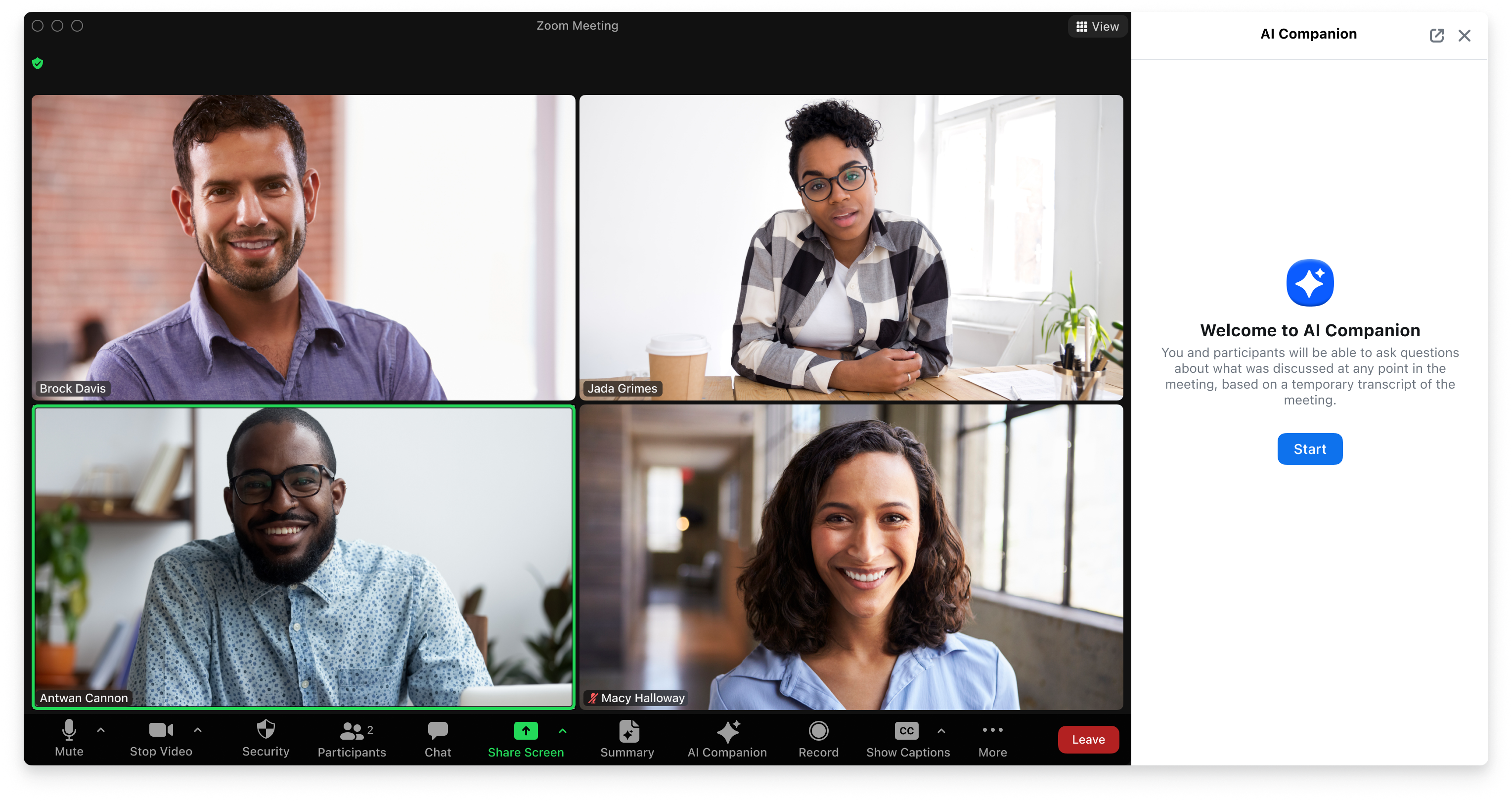
IT coordinators can follow this exact sequence to link the assistant with Zoom or Google Meet accounts. Each step builds on the previous one so the system works from the first real call onward.
-
Grant calendar permissions
Begin by signing into the admin console with an account that holds full rights over the team calendar. Locate the integration section and approve read and write access so the assistant can see upcoming meetings and add summaries afterward. In practice, many coordinators overlook the need to also grant access to shared calendars used by sales reps, which later blocks automatic note distribution. Test the permission set by checking whether a sample event appears in the assistant dashboard within two minutes. This step usually takes under five minutes once the correct admin role is active, yet skipping it prevents every later feature from functioning.
-
Select meeting platform
After calendar access is confirmed, choose either Zoom or Google Meet from the platform dropdown inside the assistant settings. Select Zoom first if most calls already run on that service, or pick Google Meet when the team uses Workspace accounts daily. The choice matters because each platform sends a slightly different data stream for live transcription. Confirm the selection saves without error before moving forward. Teams that switch platforms later must repeat this step to avoid mismatched recording links.
-
Enable transcription language
Open the language menu and set the primary transcription language to English for United States calls. Add Spanish or French as secondary options if the sales team regularly meets with international clients. The assistant then detects the spoken language automatically and switches mid-call when needed. Verify the setting by reviewing a short test recording to confirm names and industry terms appear correctly spelled. Incorrect language choices remain one of the most frequent causes of unusable transcripts in the first week of deployment. The follow-up piece Best choices for otter assistant google meet and similar tools covers this in more practical detail.
-
Test with a short call
Schedule a ten-minute internal meeting using the same Zoom or Google Meet link the team will use in production. Join with two colleagues and speak normally while the assistant runs in the background. After the call ends, open the transcript within three minutes to check that key questions were flagged and action items were listed. Adjust any permission or language settings that produced errors before inviting external participants. This test prevents awkward moments during high-stakes sales calls later in the month.
-
Share output with participants
Return to the assistant dashboard and enable automatic email summaries for every attendee listed on the calendar invite. Set the delivery time to five minutes after the meeting closes so notes arrive while details remain fresh. Include a one-click link to the full transcript and any captured screenshots. Sales teams in particular benefit from this step because follow-up tasks reach the right people without extra manual forwarding. Confirm the first automated email lands in inboxes before rolling the tool out more broadly.
Live multi-language transcript language flags
Handle multi-language meetings smoothly
Set the primary language to the one used most often, then add up to two secondary languages in the settings panel. The assistant will flag language switches in the transcript margin so reviewers can jump straight to the correct section. In a recent rollout for a support team handling both English and Spanish calls, this approach cut review time by roughly thirty percent.
Watch storage limits from day one
Each transcribed hour consumes about 80 megabytes when screenshots are included. Set an automatic archive rule that moves meetings older than ninety days to long-term storage. This keeps the active dashboard responsive and avoids surprise overage charges on the monthly bill.
Limit screenshot analysis to key moments
Enable screenshot capture only for slides or shared screens rather than the full video feed. This reduces both storage use and processing time while still preserving the visuals that matter for later reference.
Test assistant on a trial account
Run the full sequence on a test account first so any permission or language issues surface before the sales or support teams rely on the tool. Once the short-call test passes, the same steps scale cleanly across the organization without repeated troubleshooting. The result is consistent transcripts, faster follow-ups, and fewer missed details during live conversations on Zoom or Google Meet.
Start with one small group this week, gather feedback on the output quality, and expand only after the process feels reliable. This measured approach keeps IT coordinators in control while delivering the real-time support the assistant promises.
Frequently Asked Questions
How long does the initial connection usually take?
The complete sequence takes most IT coordinators between twenty and thirty minutes when calendar permissions are already in place. The test call adds another ten minutes. Teams that must request admin rights from a separate department often need an extra day before the first successful run. Once the initial setup finishes, adding new users requires only a few clicks per account.
Can the assistant work with both Zoom and Google Meet at the same time?
Yes, the same workspace can connect to multiple platforms. Select both options during the platform step and the assistant will route recordings correctly based on the meeting link. Sales teams that run some calls on Zoom and others on Google Meet report no extra configuration after the first setup. The only requirement is that each platform account uses the same calendar the assistant already accesses.
What happens if a meeting uses a different language than expected?
The assistant attempts to detect the spoken language and switches automatically if secondary languages were enabled. Accuracy drops when strong accents or heavy technical jargon appear, so a quick manual review of the first few transcripts helps catch those cases. Users can also reprocess a recording with a different language setting if the initial output contains too many errors.
Does the assistant store recordings permanently?
Recordings stay available for the retention period set in the admin console, typically ninety days by default. After that window, files move to archive storage or delete according to company policy. IT teams can adjust the retention length at any time without affecting active meetings.
Will participants see that an assistant is present?
The assistant joins as a separate participant with a neutral name such as “Meeting Notes.” Hosts can rename it or hide the participant list entry depending on platform settings. Most teams choose to keep it visible so attendees know notes are being captured automatically.
Further Reading
- Virtual Scheduling Assistants in Distributed Teams
- Connecting Calendars to a Virtual Scheduling Assistant
- Five Essential Capabilities of Online Scheduling Assistants
- Webex Assistant Compared With Built-in Meeting Controls
- Core Components of the Cisco Webex Assistant
{“@type”:”Article”,”author”:{“name”:”Edisyn”,”@type”:”Organization”},”@context”:”https://schema.org”,”headline”:”Connecting an Assistant to Existing Video Platforms”,”keywords”:”zoom ai meeting assistant, otter assistant google meet, ai assistant for meetings”,”publisher”:{“name”:”Edisyn”,”@type”:”Organization”},”wordCount”:1264,”inLanguage”:”en”,”description”:”The article walks through the exact sequence required to link an AI assistant with Zoom or Google Meet accounts. Steps cover permission settings, calendar access, and first-call testing. Commercial readers gain a repeatable process that avoids common setup failures.”,”dateModified”:”2026-07-24T16:02:34.209Z”,”timeRequired”:”PT7M”,”datePublished”:”2026-07-24T16:02:34.209Z”}
{“@type”:”FAQPage”,”@context”:”https://schema.org”,”mainEntity”:[{“name”:”How long does the initial connection usually take?”,”@type”:”Question”,”acceptedAnswer”:{“text”:”The complete sequence takes most IT coordinators between twenty and thirty minutes when calendar permissions are already in place. The test call adds another ten minutes. Teams that must request admin rights from a separate department often need an extra day before the first successful run. Once the initial setup finishes, adding new users requires only a few clicks per account.”,”@type”:”Answer”}},{“name”:”Can the assistant work with both Zoom and Google Meet at the same time?”,”@type”:”Question”,”acceptedAnswer”:{“text”:”Yes, the same workspace can connect to multiple platforms. Select both options during the platform step and the assistant will route recordings correctly based on the meeting link. Sales teams that run some calls on Zoom and others on Google Meet report no extra configuration after the first setup. The only requirement is that each platform account uses the same calendar the assistant already accesses.”,”@type”:”Answer”}},{“name”:”What happens if a meeting uses a different language than expected?”,”@type”:”Question”,”acceptedAnswer”:{“text”:”The assistant attempts to detect the spoken language and switches automatically if secondary languages were enabled. Accuracy drops when strong accents or heavy technical jargon appear, so a quick manual review of the first few transcripts helps catch those cases. Users can also reprocess a recording with a different language setting if the initial output contains too many errors.”,”@type”:”Answer”}},{“name”:”Does the assistant store recordings permanently?”,”@type”:”Question”,”acceptedAnswer”:{“text”:”Recordings stay available for the retention period set in the admin console, typically ninety days by default. After that window, files move to archive storage or delete according to company policy. IT teams can adjust the retention length at any time without affecting active meetings.”,”@type”:”Answer”}},{“name”:”Will participants see that an assistant is present?”,”@type”:”Question”,”acceptedAnswer”:{“text”:”The assistant joins as a separate participant with a neutral name such as “Meeting Notes.” Hosts can rename it or hide the participant list entry depending on platform settings. Most teams choose to keep it visible so attendees know notes are being captured automatically.”,”@type”:”Answer”}}]}
{“name”:”Connecting an Assistant to Existing Video Platforms”,”step”:[{“name”:”Grant calendar permissions Begin by signing into the admin console with an accou”,”text”:”Grant calendar permissions Begin by signing into the admin console with an account that holds full rights over the team calendar. Locate the integration section and approve read and write access so the assistant can see upcoming meetings and add summaries afterward. In practice, many coordinators overlook the need to also grant access to shared calendars used by sales reps, which later blocks automatic note distribution. Test the permission set by checking whether a sample event appears in the assistant dashboard within two minutes. This step usually takes under five minutes once the correct admin role is active, yet skipping it prevents every later feature from functioning.”,”@type”:”HowToStep”,”position”:1},{“name”:”Select meeting platform After calendar access is confirmed, choose either Zoom o”,”text”:”Select meeting platform After calendar access is confirmed, choose either Zoom or Google Meet from the platform dropdown inside the assistant settings. Select Zoom first if most calls already run on that service, or pick Google Meet when the team uses Workspace accounts daily. The choice matters because each platform sends a slightly different data stream for live transcription. Confirm the selection saves without error before moving forward. Teams that switch platforms later must repeat this step to avoid mismatched recording links.”,”@type”:”HowToStep”,”position”:2},{“name”:”Enable transcription language Open the language menu and set the primary transcr”,”text”:”Enable transcription language Open the language menu and set the primary transcription language to English for United States calls. Add Spanish or French as secondary options if the sales team regularly meets with international clients. The assistant then detects the spoken language automatically and switches mid-call when needed. Verify the setting by reviewing a short test recording to confirm names and industry terms appear correctly spelled. Incorrect language choices remain one of the most frequent causes of unusable transcripts in the first week of deployment.”,”@type”:”HowToStep”,”position”:3},{“name”:”Test with a short call Schedule a ten-minute internal meeting using the same Zoo”,”text”:”Test with a short call Schedule a ten-minute internal meeting using the same Zoom or Google Meet link the team will use in production. Join with two colleagues and speak normally while the assistant runs in the background. After the call ends, open the transcript within three minutes to check that key questions were flagged and action items were listed. Adjust any permission or language settings that produced errors before inviting external participants. This test prevents awkward moments during high-stakes sales calls later in the month.”,”@type”:”HowToStep”,”position”:4},{“name”:”Share output with participants Return to the assistant dashboard and enable auto”,”text”:”Share output with participants Return to the assistant dashboard and enable automatic email summaries for every attendee listed on the calendar invite. Set the delivery time to five minutes after the meeting closes so notes arrive while details remain fresh. Include a one-click link to the full transcript and any captured screenshots. Sales teams in particular benefit from this step because follow-up tasks reach the right people without extra manual forwarding. Confirm the first automated email lands in inboxes before rolling the tool out more broadly.”,”@type”:”HowToStep”,”position”:5}],”@type”:”HowTo”,”@context”:”https://schema.org”}