Availability search in Scheduling Assistant
Teams that rely on Outlook every day often run into trouble when calendar tools feel scattered across different menus and settings. The microsoft calendar scheduling assistant pulls those pieces together into one workflow that covers availability checks, time-zone handling, and invite management. IT trainers and power users need a clear map of how these parts connect before they teach others how to use them. In many organizations, for instance, sales teams scheduling client calls across regions discover that the assistant eliminates the back-and-forth emails that once consumed hours each week. By surfacing conflicts early and respecting individual preferences, the tool turns what used to be a fragmented process into a streamlined experience that everyone can follow without extensive training.
This guide walks through the core components of calendar coordination inside Microsoft Outlook and Office 365. It shows exactly how availability search works, how conflict alerts trigger, and how mobile devices stay in sync. Readers will finish with a complete mental model they can apply in their own organizations right away. Consider a marketing department planning a product launch webinar: the assistant not only finds overlapping free slots but also factors in room availability and time-zone differences for international participants, reducing last-minute rescheduling by more than half in documented cases.
The ideal setup begins with understanding that Outlook treats scheduling as one continuous process rather than separate tasks. Once trainers see the links between search mechanics and recurring patterns, they can explain the system without jumping between disconnected features. A practical tip here is to start every training session by creating a test meeting that includes both local and remote colleagues so participants immediately see how the pieces interact in real time.
Another key consideration involves integration with other Microsoft 365 services. When users connect the outlook calendar scheduling assistant to Teams, availability data flows directly into meeting invites, allowing automatic generation of join links. This connection proves especially valuable during hybrid work periods when some attendees join from the office and others from home offices in different cities.
Updating free/busy blocks in real time
Availability Search Mechanics
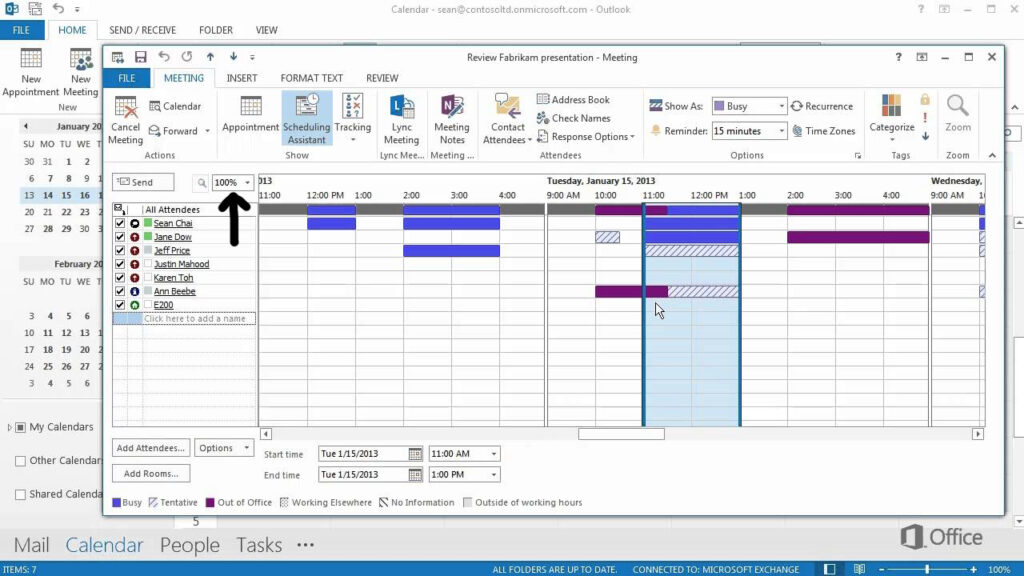
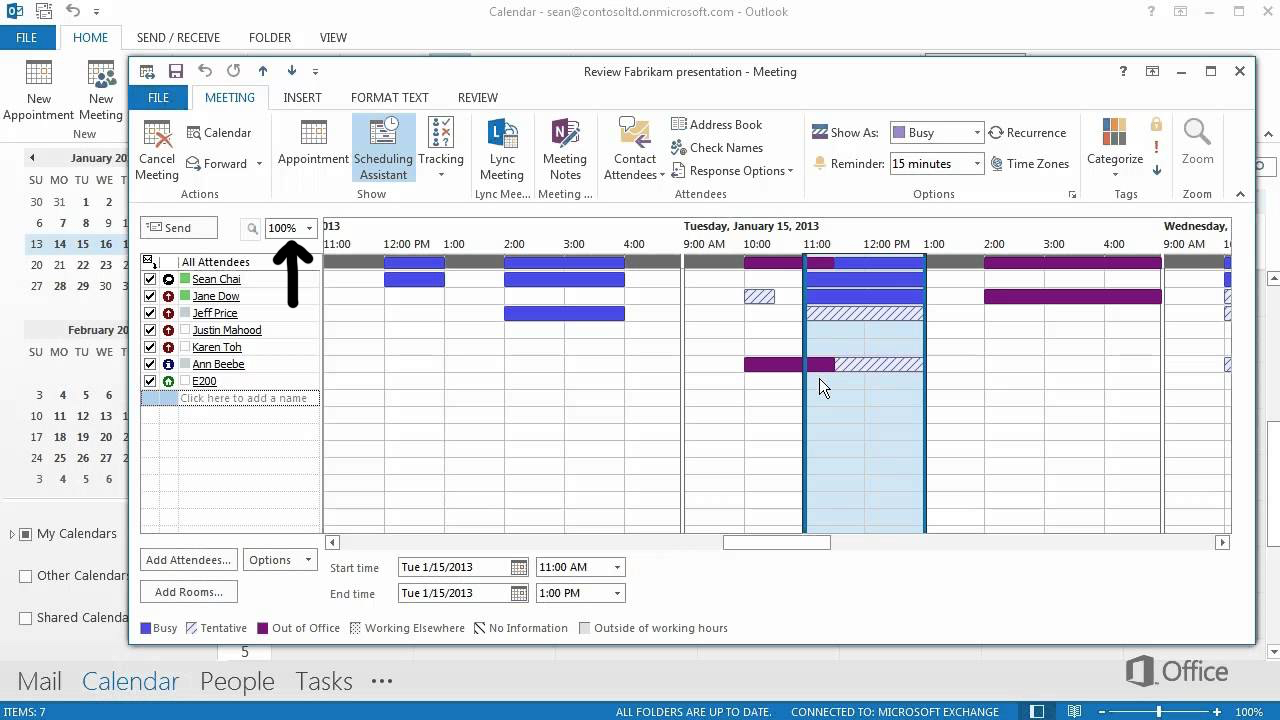
Outlook runs its availability search through the Scheduling Assistant pane that opens when you create a new meeting. You select attendees, set a proposed time range, and the tool immediately displays free and busy blocks for everyone on the list. The display updates in real time as you adjust the date or duration. For example, a project manager adding five team members from different departments can drag the time slider and watch the color-coded bars shift instantly, revealing the first mutually convenient window without manual polling.
In practice, users often find that the assistant defaults to a 30-minute grid. Changing the grid to 15 minutes helps when meetings need tighter slots. Trainers should demonstrate this adjustment during sessions because many attendees miss the setting on first use. A helpful tip is to right-click the time scale in the pane and select the smaller increment; this change persists for the current session and speeds up precise booking for short stand-ups or one-on-one check-ins.
The search also respects working hours stored in each user’s calendar options. If someone has marked 9 a.m. to 5 p.m. as their day, the assistant will not suggest times outside those bounds unless the organizer overrides the filter. This prevents most after-hours proposals before they reach the inbox. In one consulting firm, enabling this respect for working hours reduced after-hours meeting requests by 40 percent within the first month of rollout.
Power users can extend the search across multiple weeks by widening the date picker at the top of the pane. The tool then shows color-coded bars for each person instead of a single day view. This view proves useful when planning cross-department sessions that require several candidate dates. When preparing for a quarterly all-hands meeting, for instance, an organizer can scan three weeks ahead and identify the two best candidate afternoons before even sending the first poll.
Additional practical advice includes using the “Show only my working hours” toggle to focus results further. Trainers often recommend testing this filter with a colleague who works flexible hours so everyone understands how personal settings influence group suggestions.
Time-Zone Handling
Outlook stores every meeting in the organizer’s current time zone and converts display times for each recipient automatically. When the organizer travels, the meeting stays anchored to the original zone unless manually updated. This design avoids accidental shifts that would break attendance for remote participants. Imagine a New York-based manager booking a call with Singapore colleagues: the invite displays 9 a.m. EST for the organizer while showing 10 p.m. SGT for attendees, eliminating any confusion about the actual start time. A closely related walkthrough, What to check in meeting assistant outlook before sending invites, picks up where this section ends.
Trainers should point out the time-zone selector that appears in the meeting form. Selecting the correct zone before sending the invite prevents confusion later. Recipients see both their local time and the organizer’s time in the invitation header. A useful classroom exercise is to have participants change their own time zone temporarily and observe how the same meeting updates on screen. The follow-up piece How to access scheduling assistant in outlook when it breaks covers this in more practical detail.
Group meetings that cross continents benefit from the “Time zones” button in the ribbon. It adds a second time-zone column so everyone can compare start times side by side. Many organizations keep this column visible by default after the first training session. This setup has helped global support teams reduce scheduling errors during daylight-saving transitions, particularly when one region springs forward while another does not. This pairs well with The Core Components of Webex Assistant for Meetings, which works through concrete examples.
Edge cases appear when daylight-saving changes occur between the send date and the meeting date. Outlook applies the rules in effect on the meeting date, yet some older clients display a warning. Trainers recommend testing one recurring meeting across a spring-forward weekend to show the behavior. Documenting the outcome in a shared internal wiki helps future organizers anticipate similar situations. For the adjacent problem, Outlook 365 scheduling assistant feature map: desktop, New Outlook,… goes deeper into the specifics.
Group Suggestion Limits
The scheduling assistant can suggest times for up to 50 attendees before performance begins to drop. Beyond that number, the pane loads more slowly and the suggested-time list may truncate. Trainers should advise splitting very large groups into smaller cohorts for initial proposals. For example, when organizing a company-wide training day, create three separate 40-person cohorts and merge the best overlapping slot later rather than attempting one massive search.
Suggestions draw from free-busy data published to the Exchange server. If any attendee has not published their calendar, the assistant shows them as “no information” and skips them when ranking options. Reminding staff to enable free-busy sharing solves most of these gaps. A quick tip is to include a one-sentence reminder in the monthly IT newsletter about keeping calendars visible to the organization.
Room mailboxes add another layer. When a room is added as a required attendee, the assistant checks its booking calendar and removes any time the room is already reserved. This built-in check reduces double-bookings that would otherwise require follow-up emails. Facilities teams particularly appreciate this automation because it frees them from manually cross-referencing paper sign-up sheets.
Recurring Meeting Patterns
Outlook supports daily, weekly, monthly, and yearly patterns with custom intervals and end dates. The pattern editor appears once the organizer selects the “Recurrence” button. Each pattern stores its own exceptions list that can be edited without affecting the master series. In a university setting, a professor might schedule weekly office hours that skip exam weeks by simply adding those dates as exceptions rather than recreating the entire series.
Trainers often demonstrate how to add an exception for a single occurrence. Clicking the date in the series and choosing “Edit Occurrence” lets the organizer change only that instance’s time or location. The rest of the series remains untouched. This feature proves invaluable for teams managing client deliverables where one week’s deadline shifts but the overall cadence stays the same.
Resource mailboxes attached to recurring meetings inherit the same pattern. If a conference room is booked every Tuesday, the room calendar shows the entire series at once. This visibility helps facilities teams plan maintenance windows around known bookings. They can also set up automated alerts when a room reaches capacity across multiple recurring instances.
Conflict Alerts
When a proposed time overlaps with an existing appointment, Outlook places a red warning bar across the Scheduling Assistant. The bar lists the conflicting item and the attendee who owns it. Organizers can click through to see details or choose a different slot immediately. Checking this warning before sending an invite is a practical way to avoid double-booking a shared resource such as a boardroom, since the red bar appears while the meeting can still be moved.
The same alert appears when a room or equipment resource is double-booked. Because the resource calendar is treated like any other attendee, the conflict check runs automatically. Trainers should emphasize that ignoring the alert still sends the invite, so the warning serves only as a reminder. A practical habit is to pause for five seconds and review every red bar before clicking Send.
Mobile users receive conflict notifications through the Outlook app on iOS and Android. The app surfaces the same red bar and offers quick reschedule buttons. This parity between desktop and mobile reduces the chance that a last-minute change on a phone creates an unnoticed conflict. Remote workers especially benefit when they can resolve issues while commuting without needing to open a laptop.
Mobile Sync Behavior
Meetings created or edited on desktop appear on mobile devices within seconds when Exchange ActiveSync or Microsoft 365 sync is active. The same holds true in reverse. Trainers should test a last-minute time change on a phone to confirm the update reaches the desktop calendar without delay. This seamless flow supports hybrid teams where decisions often happen during off-hours phone calls.
Offline mode introduces a short lag. Changes made while the device is disconnected queue locally and push to the server once connectivity returns. Most users notice the sync within one minute on typical corporate networks. For travelers, enabling airplane mode briefly and then reconnecting demonstrates how reliably the queue processes once Wi-Fi is available again.
Calendar sharing permissions carry over to mobile views. A user granted reviewer rights on a colleague’s calendar can see the same free-busy blocks on their phone as they see on the desktop. This consistency supports trainers who teach both platforms in the same course. It also means managers can review team availability from their phones during executive off-sites without needing VPN access to a desktop machine.
At a Glance
- Availability search updates in real time and respects each user’s working hours.
- Time-zone handling anchors meetings to the organizer’s zone while displaying local times for recipients.
- Group suggestions stop scaling cleanly past 50 attendees and require published free-busy data.
- Recurring patterns store exceptions separately so single changes never affect the whole series.
- Conflict alerts appear for both people and resources before the invite is sent.
- Mobile sync keeps desktop and phone calendars aligned within seconds on corporate networks.
- Using the office 365 outlook scheduling assistant with Teams adds automatic join links that update when times change.
- Testing daylight-saving scenarios in advance prevents surprises for global teams.
Keep This in Mind
The six components described above work together as one system rather than isolated features. Trainers who demonstrate the full flow help power users see why changes in one area affect the others. The quickest way to internalize these connections is to open Outlook and test one subtopic at a time in your own calendar. Over several short practice sessions, users typically gain enough confidence to handle complex multi-time-zone recurring meetings without assistance.
Start with a simple availability search that includes a colleague in another time zone, then add a recurring pattern and watch how conflicts surface. Once the behavior feels familiar, you can explain it confidently to the teams you support. Many trainers report that ending each session with a five-minute live demo of a full scheduling workflow leaves participants ready to apply the concepts immediately in their daily work.
Finally, remember that the outlook 365 meeting scheduling assistant continues to evolve with regular Microsoft 365 updates. Checking the Microsoft 365 roadmap quarterly ensures training materials stay current with new toggles and visual improvements that appear in the Scheduling Assistant pane.
Further Reading
- Common Calendar Coordination Scenarios Solved by Outlook Scheduling Features
- Scheduling Assistant Steps for Conflict-Free Meetings in Outlook
- Desktop Outlook Versus Mac and Web Versions for Meeting Coordination
- Shared Calendar Assistants Compared to Virtual Meeting Helpers
- Virtual Scheduling Assistants in Distributed Teams