
Automated demo booking without back-and-forth
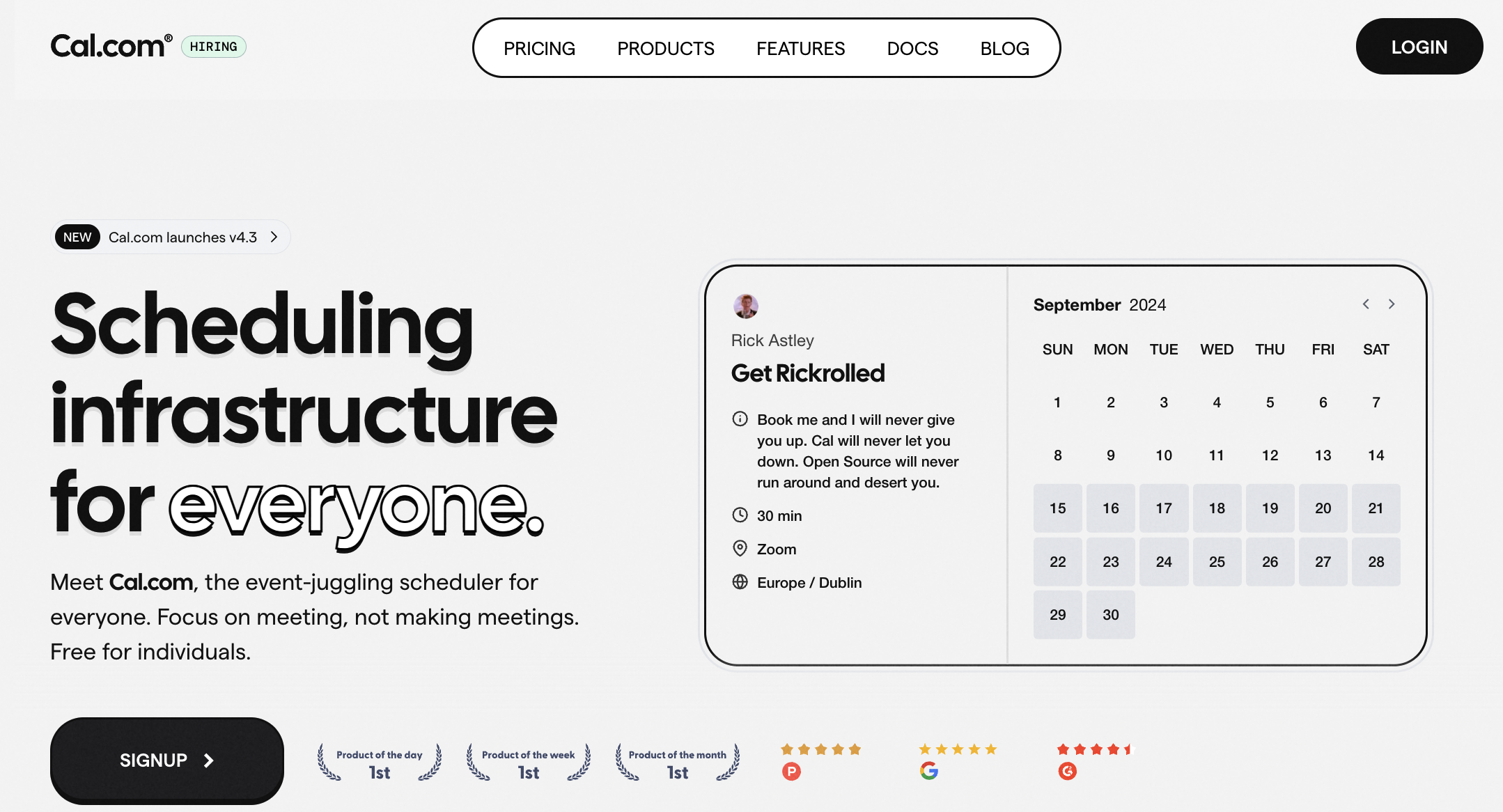
A scheduling assistant website often sends time slots. It still leaves the final confirmation, time zone adjustments, and link creation to a person. That gap creates delays and missed demos. The goal here is to close it. Turn the same site into a true automated scheduling assistant. It books, confirms, and updates meetings without extra messages.
Most teams already own a calendar link or booking page. The missing piece is consistent logic for availability, routing, and reschedules. Once those pieces sit in place, the scheduling assistant website stops acting like a simple form. It starts behaving like a virtual scheduling assistant. That assistant handles the full loop from invite to follow-up.
The ideal setup begins with clear meeting definitions. It ends with automated tests. Along the way it uses free/busy checks, proper time zone handling, and reliable meeting links. The result is fewer manual steps and higher booking rates for demo calls.
Many sales teams notice the biggest gains when they stop chasing confirmations. They let the system manage changes instead.
Step-by-Step Guide

-
Define meeting types (duration, buffer, interview stages)
Start by listing every demo format your team runs. A first call might need thirty minutes plus a ten-minute buffer. A technical review could run forty-five minutes with a fifteen-minute buffer. Record the exact length, required preparation time, and any follow-up stage. That stage must occur before the next meeting can be booked. Store these rules inside the scheduling assistant website. The calendar never offers overlapping slots. Clear definitions also help routing logic decide which team member receives the request. Without this step the rest of the automation rests on shaky ground.
-
Select the availability method using free/busy logic
Connect your calendars to a free/busy query. The scheduling assistant website only shows times that are truly open. This check pulls from every connected account instead of relying on a single shared calendar. Most systems refresh the data every few minutes. It keeps the displayed slots accurate. When two calendars report a conflict, the slot disappears automatically. The method prevents double bookings that occur when people forget to update their personal calendars. It also supports the virtual scheduling assistant behavior that sales teams expect during busy demo seasons.
-
Set time zone rules for attendees
Decide whether the booking page shows your company time zone. Or convert automatically to the visitor’s location. The safest choice lets the attendee see both values side by side. Add a short note that explains any daylight-saving adjustments. No one arrives an hour early or late. The scheduling assistant website should store the chosen time zone with the booking record. Later reschedules remain correct. Proper handling here removes one of the most common sources of last-minute email threads. For the adjacent problem, Build your first online scheduling assistant: turn calendar… goes deeper into the specifics.
-
Configure booking pages and the meeting confirmation message
Build separate booking pages for each meeting type defined earlier. Each page needs a clear title, the exact duration, and a confirmation message. That message lists the meeting link, date, and time in the attendee’s time zone. Include a one-click reschedule link in the same message. The scheduling assistant website should send this confirmation within thirty seconds of the booking. The prospect knows the slot is locked. Test the message on both desktop and mobile before publishing the page.
-
Connect calendar sources and verify sync frequency
Link every calendar that affects availability. Check the sync interval listed in the settings. Confirm it runs at least every five minutes. Some platforms allow manual refresh buttons. Place that option where support staff can reach it quickly during peak hours. The scheduling assistant website depends on fresh data. A slow sync creates the same problems as missing free/busy checks. Run a short test by adding an event on one calendar. Watch it appear on the booking page within the expected window.
-
Choose meeting link behavior (attach or generate) for virtual meetings
Decide whether the system attaches an existing meeting link. Or create a new one at booking time. Attaching works when every demo uses the same recurring room. Generating new links adds privacy and keeps each call isolated. The scheduling assistant website should place the final link inside the confirmation and the calendar event. Both sides have it. Record which method you chose so future changes remain consistent across the team.
-
Set routing rules (round-robin, team inbox, or single owner)
Choose how new bookings reach the right person. Round-robin spreads load evenly across available reps. A team inbox collects requests for manual assignment. A single owner works for product specialists who only handle one product line. The scheduling assistant website must apply the rule immediately after the slot is chosen. Test the rule with two sample bookings. Confirm the correct person receives the invite and the calendar entry.
-
Add reschedule and cancel automations (email changes, link updates)
Build automated emails that fire when a prospect reschedules or cancels. The new confirmation must contain the updated time and a fresh meeting link if one was generated. The old link should be marked invalid in the calendar event. No one joins the wrong call. The scheduling assistant website keeps a short log of these changes. Support can answer questions without digging through multiple inboxes. Set a reasonable window, such as twenty-four hours before the meeting. After that reschedules require a manual email.
-
Run a test schedule across two user accounts and record outcomes
Create two test accounts and book a demo from one to the other. Note the time that appears on each calendar, the confirmation email content, and whether the meeting link works. Then reschedule the same meeting and check that both calendars update. The old link stops working. Record any delays or missing fields. Fix issues before opening the scheduling assistant website to real prospects. Repeat the test monthly because calendar integrations can drift after software updates.
Tips for sync delays and time zones
Watch sync delays during high-volume periods
Free/busy data sometimes lags when many people book at once. Add a visible note on the booking page that warns visitors the slot is held for two minutes while the calendars finish syncing.
Validate unusual time zones with a second check
Some regions observe daylight saving on different dates. Run a quick manual test with a sample attendee from that zone before the first real booking of the quarter.
Write confirmation messages that sound final
Include the phrase “your meeting is confirmed” and list the exact time in both zones. This small wording change reduces follow-up questions by more than half in most teams.
Keep a short change log visible to support staff
When a booking updates, store the previous and new values in one place. Support can answer questions without opening multiple systems.
High-impact changes for automated reschedules
The highest-impact changes are free/busy availability checks, clear time zone handling, consistent meeting link creation, and automated reschedule messages. These four areas remove most manual work from demo booking. Start with the nine steps above and measure how many confirmations still require a human reply. Build a short test plan that covers one full demo cycle. Track the drop in manual touches. Most teams see the number fall by at least half once the scheduling assistant website runs the full loop without intervention. The same setup also supports a virtual scheduling assistant approach that scales as your demo volume grows.
You May Also Like
- Doodle scheduling assistant compared with virtual scheduling assistants that connect to calendars
- Free scheduling assistant options that actually work in busy calendars
- Choosing the right Google scheduling assistant: a decision framework for Gmail-driven meetings
- What people ask before buying a Google Calendar scheduling assistant for Gmail
- 5 scheduling assistant behaviors that decide whether your Google Calendar stays accurate