
Virtual Scheduling Assistant: The Basics
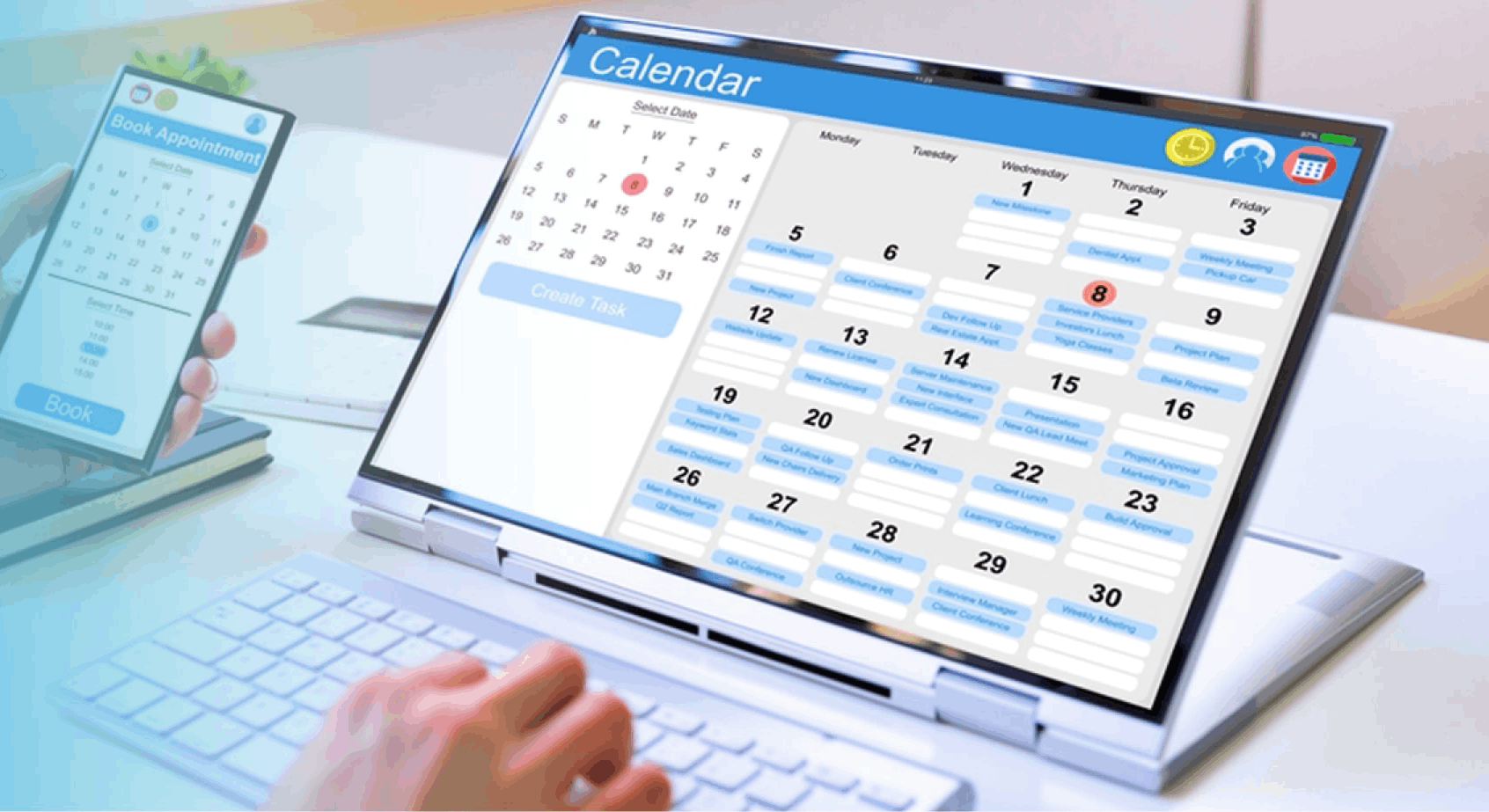
Teams that run dozens of remote meetings each week quickly discover that a simple scheduling link is not enough. A virtual scheduling assistant must read live calendar data. It must create or attach the correct meeting link. It must handle changes without constant human intervention. Integration quality determines whether the tool saves time or simply shifts the work to another screen. In practice, this means the assistant needs robust API connections. These connections refresh availability every few minutes. They avoid reliance on overnight syncs. Overnight syncs can leave teams staring at outdated slots during busy quarters.
Most professionals already live inside one primary platform. Some hold every call on Zoom. Others book through shared company calendars. Still others prefer a lightweight website widget that anyone can click. The right virtual scheduling assistant matches the platform that already contains the meetings. It avoids forcing users to adopt an entirely new workflow. For instance, a sales representative who spends eight hours a day inside Zoom will waste valuable minutes. This happens if their assistant constantly redirects them to a separate calendar tab just to confirm a prospect’s slot.
Calendar availability detection, meeting link creation, time-zone handling, and rescheduling automation all depend on how deeply the assistant connects to the underlying data source. Weak connections produce double-bookings or stale free/busy windows. Strong connections keep everyone aligned in real time. Consider a product team spread across three continents. When an engineer in Singapore updates a deadline at 2 a.m. local time, the assistant must instantly reflect that change. It does so for colleagues in New York and London. No manual refresh clicks are required.
Understanding Integration Depth in Daily Operations
Deeper integrations also protect against edge cases like overlapping personal and work calendars. A strong online scheduling assistant can layer multiple sources. A blocked personal appointment then automatically blocks the shared work view. Practical tip: always grant the assistant read-only access first during testing. Then expand permissions once you confirm no accidental edits occur. This staged rollout prevents the common headache of duplicated events that plague rushed implementations.
Which One Fits You?

The comparison below shows how four common approaches perform on the criteria that matter most during live scheduling. Each row represents a distinct type of virtual scheduling assistant. Look beyond the surface numbers. Consider your team’s meeting volume. Consider the frequency of last-minute changes. Consider whether external clients or only internal stakeholders book time. A marketing agency that hosts weekly client reviews will value different strengths than an internal engineering group running daily stand-ups.
| Criteria | Zoom virtual assistant | Scheduling assistant website | Digital scheduling assistant with calendar sync | Freebusy scheduling assistant-style availability checker |
|---|---|---|---|---|
| Calendar availability detection approach (free/busy) | Reads Zoom calendar only; limited external calendar pull | Usually polls one or two external calendars via API | Connects to multiple calendars with two-way sync | Queries free/busy endpoints directly without storing events |
| Meeting link handling (creates/attaches) | Always creates new Zoom link | Creates link in chosen platform or attaches existing one | Creates or reuses links across connected platforms | Does not create links; user pastes them manually |
| Time zone support | Basic conversion inside Zoom | Good when user sets location correctly | Strong; follows each participant’s calendar settings | Relies on browser or calendar time-zone data |
| Automation coverage (reschedules/cancellations) | Reschedules inside Zoom only | Handles changes if source calendar updates | Propagates changes across all connected calendars | Limited; usually requires manual update |
| Admin controls (teams/round-robin) | Basic host controls | Often includes round-robin and team routing | Full team and round-robin rules supported | Minimal; usually single-user only |
| User setup effort | Low if already using Zoom | Medium; embed code or account required | Higher initial connection steps | Lowest; no account often needed |
| Typical best-fit scenario | Teams that run almost every meeting on Zoom | Public-facing booking pages or marketing sites | Companies with mixed calendar tools and recurring internal meetings | Quick one-off checks without full automation |
Choosing the right virtual scheduling assistant starts with identifying where most meetings already occur. If the majority live inside Zoom, the first column shows the simplest path. If the organization uses several calendar systems, the third column offers broader coverage. A virtual scheduling assistant that only checks free/busy windows works for occasional needs. It quickly becomes a bottleneck when rescheduling volume rises. Teams often discover this after switching to a lightweight checker. They end up manually updating recurring client calls. This happens because the tool lacks automatic propagation. A closely related walkthrough, Which AI meeting assistant fits your workflow: scheduling, summaries,…, picks up where this section ends.
Matching Assistant Type to Team Size and Meeting Cadence
Small startups with under ten people often thrive with a scheduling assistant website. It doubles as a public-facing booking page for investor calls. Larger enterprises, however, benefit more from full calendar-sync options. These options enforce round-robin rules across departments. Practical tip: run a one-week shadow test where two assistants operate in parallel on the same calendar. Compare how many manual interventions each requires before deciding. This pairs well with Which fits your workflow: otter ai assistant, Rev or Avoma?, which works through concrete examples.
Advantages and Disadvantages
Each approach carries clear strengths and predictable failure points. A Zoom virtual assistant excels at instant link creation. Yet it struggles when participants keep primary calendars elsewhere. A scheduling assistant website offers polished public booking pages. It can return stale availability if the connected calendar stops syncing. In practice, forgetting to renew an OAuth token can cause consecutive discovery calls to appear as “free” on a public page. This leads to awkward double-bookings that damage client trust.
Digital scheduling assistants with full calendar sync handle round-robin rules and team availability well. Yet they require more setup time and careful permission management. Freebusy scheduling assistant tools keep data light and private. But they leave meeting link creation and rescheduling steps to the user. Teams using only free/busy checks often spend extra time manually stitching together links for upcoming review sessions.
Timezone edge cases appear most often when participants cross the International Date Line. They also appear when daylight-saving changes occur on different dates. In most systems, the assistant inherits the time-zone settings of the source calendar. Users should verify those settings before relying on automated suggestions. Stale free/busy windows usually result from revoked OAuth tokens or network delays between the assistant and the calendar provider. A quick monthly audit of connected accounts catches most of these issues before they surface during high-stakes scheduling windows.
Handling Edge Cases Like Daylight Saving and Cross-Border Teams
When teams span regions with mismatched daylight-saving rules, test the assistant by scheduling a meeting that lands exactly on the changeover weekend. This reveals whether the tool adjusts correctly or forces manual corrections. Another tip: keep a secondary manual override link handy for the rare occasions when an assistant’s automation fails during critical client negotiations.
Testing assistant integration with real changes
Start by naming the platform that already hosts the majority of meetings. Confirm that the chosen virtual scheduling assistant can read free/busy data reliably. Confirm that it can propagate reschedules without extra clicks. Test the shortlist against a real recurring series and a last-minute change before committing. Track the number of manual interventions per week as your primary success metric. A drop from fifteen to three signals the tool is truly integrated.
Audit the current sequence of steps used to book, confirm, and adjust meetings. Shortlist two assistant types that match the dominant platform. Run a two-week trial. The virtual scheduling assistant that removes the most manual hand-offs will quickly prove its value. Ask team members for qualitative feedback after the trial. Ask what felt smoother and what still required workarounds. Adjust permissions or switch providers accordingly. Over time, the right assistant becomes invisible. It lets everyone focus on the actual meeting content instead of the logistics surrounding it.
Related Topics
- Doodle scheduling assistant compared with virtual scheduling assistants that connect to calendars
- Free scheduling assistant options that actually work in busy calendars
- Turn a scheduling assistant website into an automated scheduling assistant for demos
- Scheduling assistant downloads: what to check before installing a meeting schedule assistant
- Choosing the right Google scheduling assistant: a decision framework for Gmail-driven meetings